
Configuration: module settings
Each module in Kompass has settings that decide how it behaves for an org: whether a contact needs a source, how many hours make a working day, which status an expense must reach before approval, and so on. Administrators change them on the module's Settings tab in Configuration, without going to the Kompass Admin site.
This article covers the Settings tabs for Contacts, Equipment, Tasks, Expenses, Schedule, Emails and AI assistants. Some of the lists on the Lists tabs are covered in Configuration: client and expense lists and Configuration: equipment, supplier and leave lists.
Opening a module's settings
- Open your user menu and choose Configuration.
- Under Modules (or Access for AI assistants), choose Open on the module.
- Choose the Settings tab.
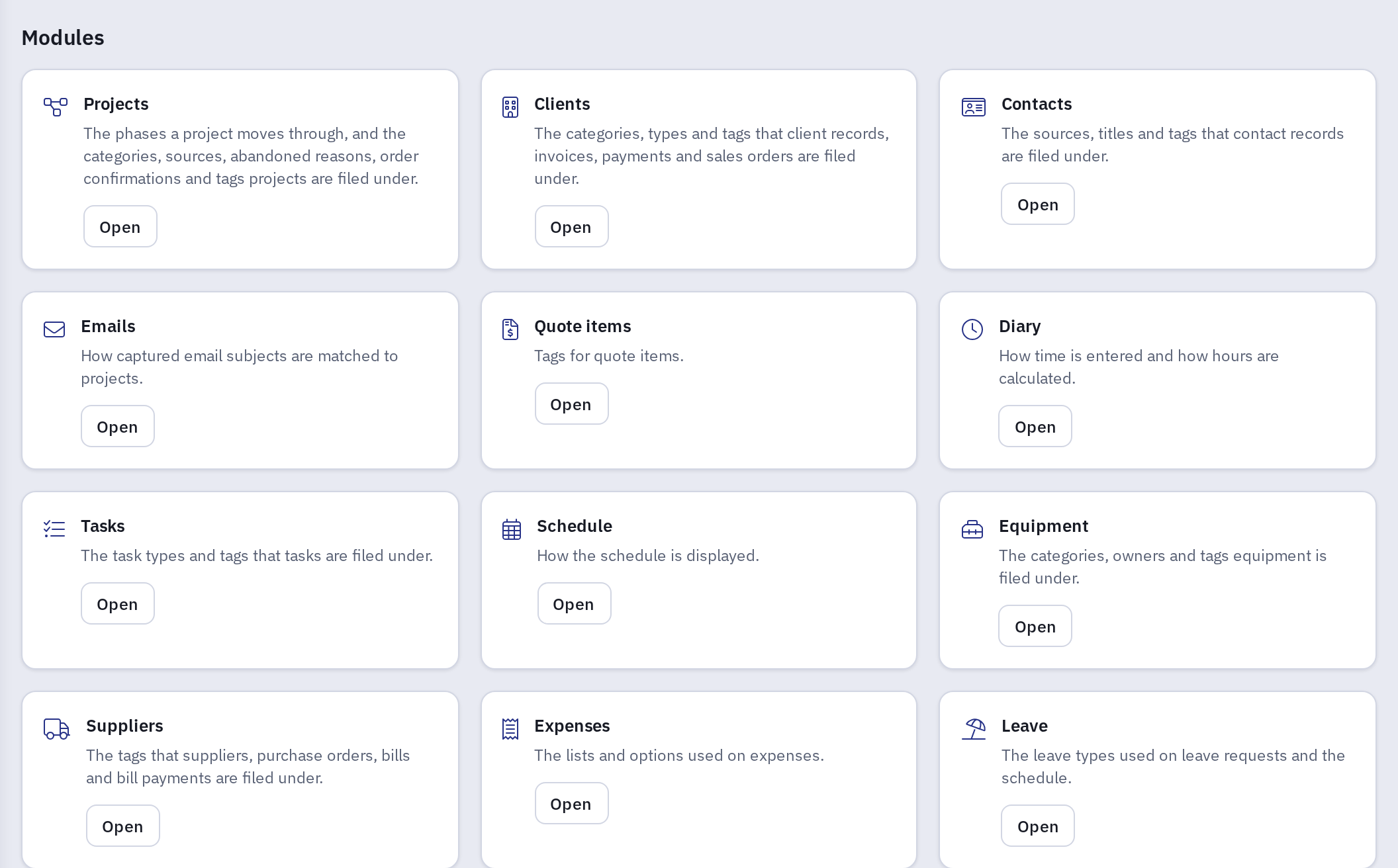
The Contacts, Equipment, Tasks and Expenses lists also have a Configure command in their Actions menu (for example Actions → Configure contacts). It opens the module in Configuration, on the Lists tab if you can edit lists, otherwise on Settings.
Who can change settings
A Settings tab is shown only to people whose group can change that module's settings. In the group's advanced permissions, set the module's settings permission (for example Contact settings or Task settings) to Edit. People who can only view settings do not see the tab. See the Permissions Reference.
How the Settings tab works
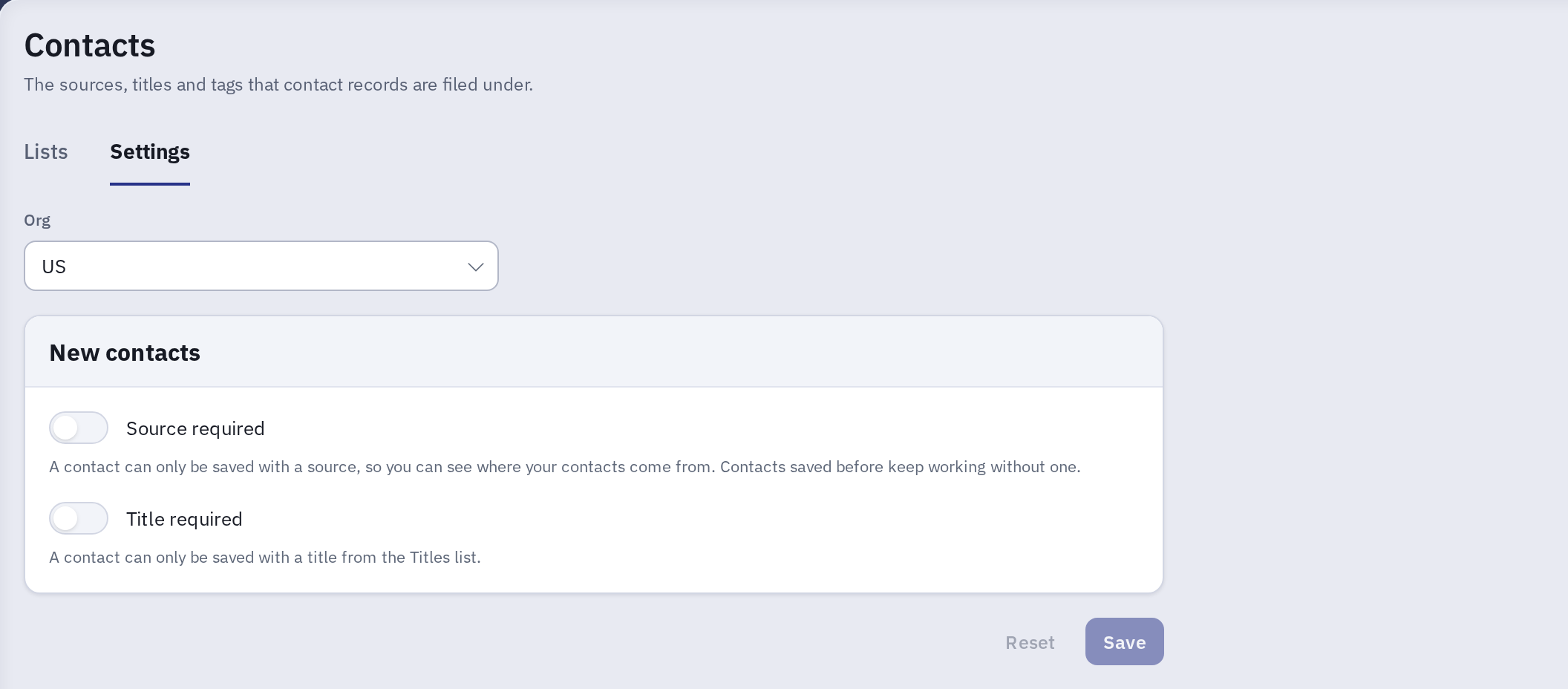
- Settings are per org. If you have access to more than one org, an Org selector at the top chooses which org's settings you are editing. It starts on the org you are working in. With one org, the selector is hidden.
- Save stores your changes for the selected org and shows Settings saved. It is grayed out until you change something (except on the Emails tab).
- Reset puts the form back to the saved values.
- If a value is not accepted, a message explains why and nothing is saved.
- An org that has never had its settings saved shows the defaults. The first Save stores them for that org.
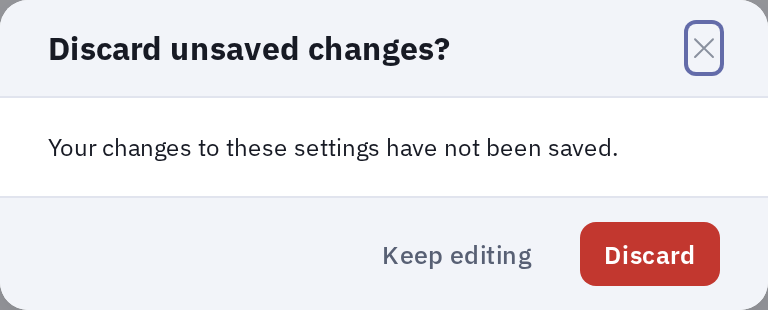
If you switch org, switch tab or leave the page with unsaved changes, Kompass asks before throwing them away. Choose Keep editing to go back, or Discard to drop the changes.
Contacts
Under New contacts:
| Setting | What it does |
|---|---|
| Source required | A contact can only be saved with a source, so you can see where your contacts come from. Existing contacts without a source stay as they are, but need one the next time they are edited and saved. Off by default. |
| Title required | A contact can only be saved with a title from the Titles list. Off by default. |
Before turning either on, make sure the org has values in the Sources or Titles list on the Contacts Lists tab. Otherwise nobody in that org can save a contact.
Equipment
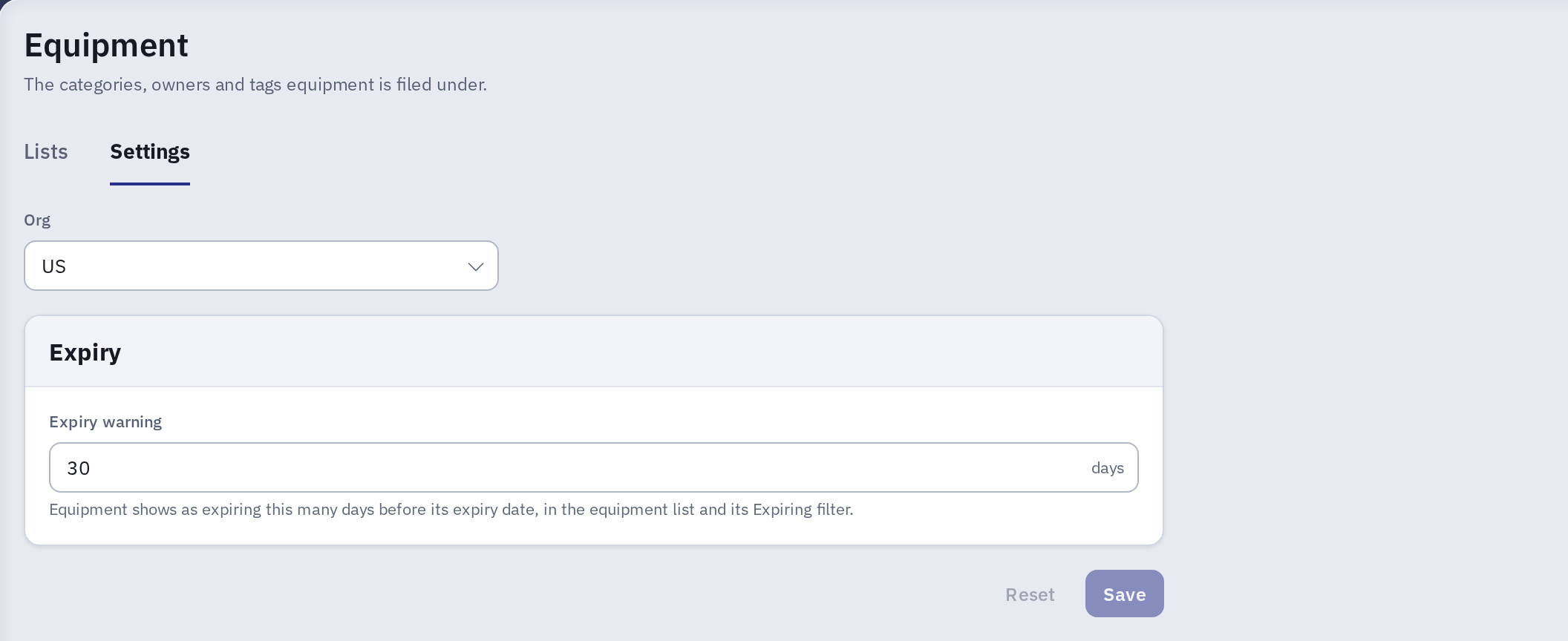
Expiry warning is the number of days before its expiry date that equipment shows as expiring, in the equipment list and its Expiring filter. It can be 1 to 365 days, and is 30 by default.
Tasks
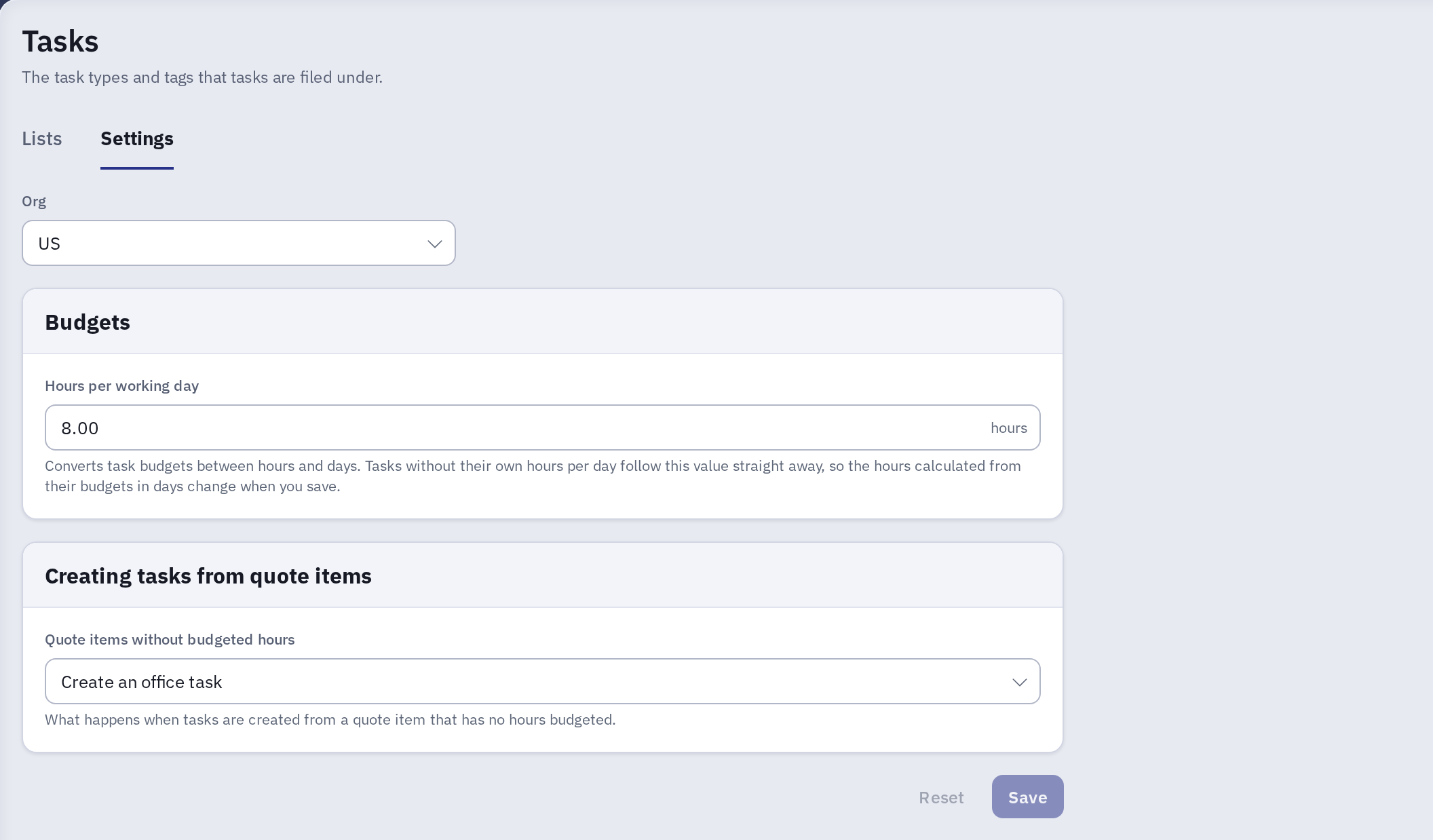
| Setting | What it does |
|---|---|
| Hours per working day | Converts task budgets between hours and days, from 0.25 to 24 hours (8 by default). Tasks without their own hours per day follow this value straight away, so the hours calculated from their budgets in days change when you save. |
| Quote items without budgeted hours | What happens when tasks are created from a quote item that has no hours budgeted: Create a field task, Create an office task (the default), Create a field task and an office task, or Do not create a task. A field task needs a task type set as the org's Field type, and an office task one set as its Office type, on the Tasks Lists tab. If the type is missing, the tasks are not created and an error is shown. See Unit 7: Tasks. |
Expenses
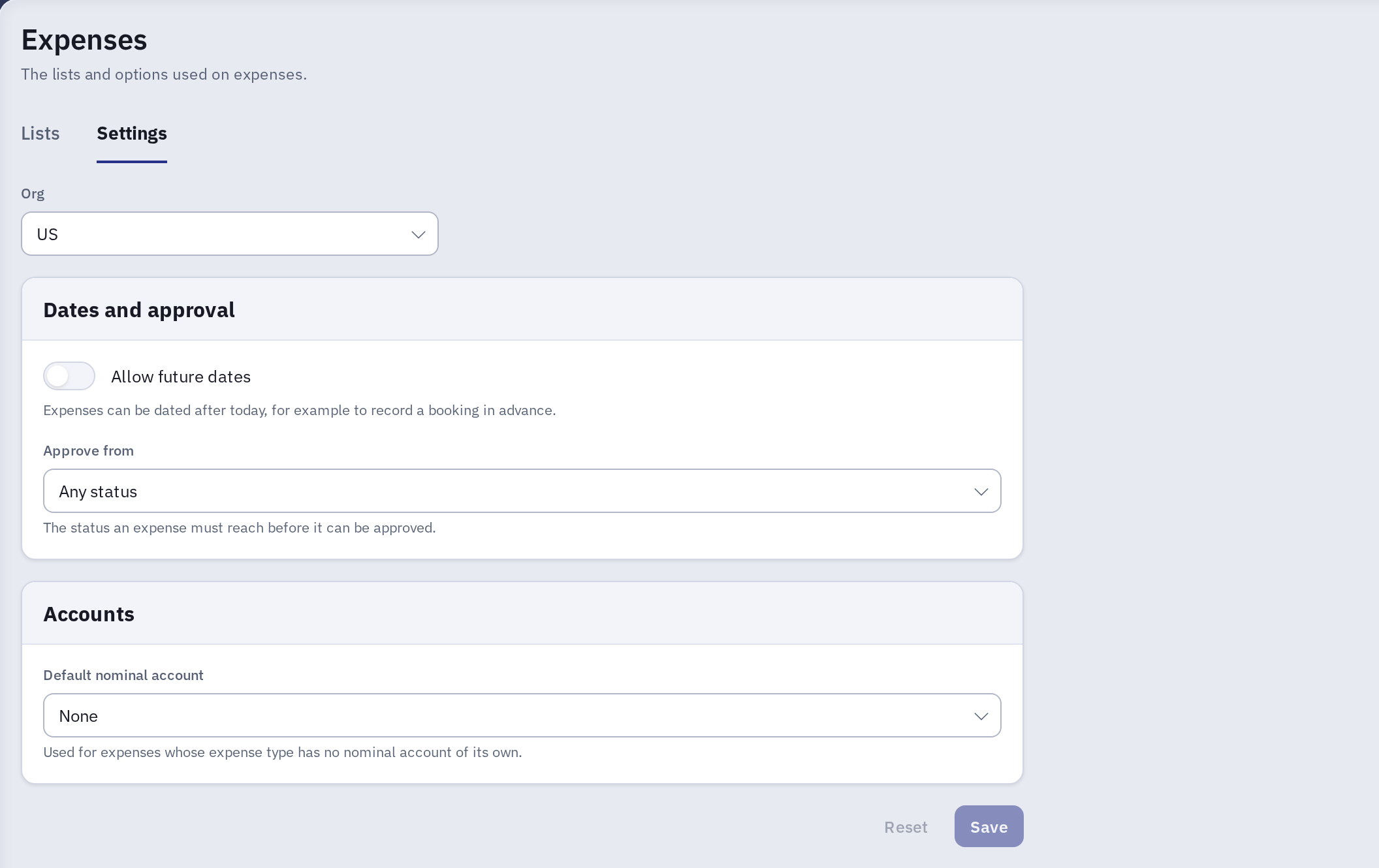
| Setting | What it does |
|---|---|
| Allow future dates | Expenses can be dated after today, for example to record a booking in advance. Off by default. |
| Approve from | The status an expense must reach before it can be approved: Any status (the default), Submitted or Checked. |
| Default nominal account | Used for expenses whose expense type has no nominal account of its own. Only nominal accounts linked to the org and in use today are offered. With None, those expenses fall back to the org's default nominal account. To load the list you also need permission to view nominal accounts; without it the field stays grayed out. See Configuration: nominal accounts. |
Schedule
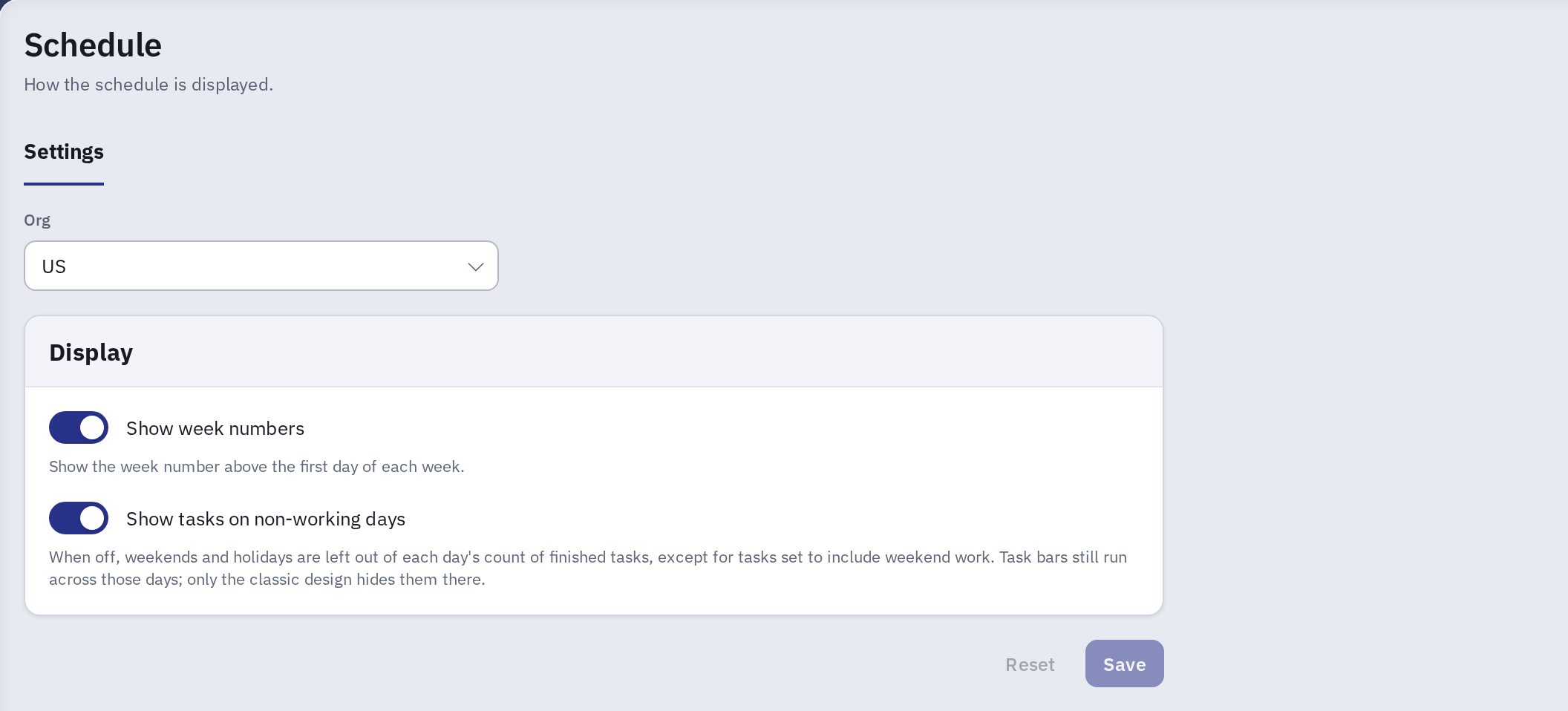
| Setting | What it does |
|---|---|
| Show week numbers | Shows the week number above the first day of each week. Off by default. |
| Show tasks on non-working days | On by default. When off, weekends and holidays are left out of each day's count of finished tasks, except for tasks set to include weekend work. Task bars still run across those days. |
Emails
The Emails settings decide how captured emails are matched to projects. See Recording client emails for how emails are captured.
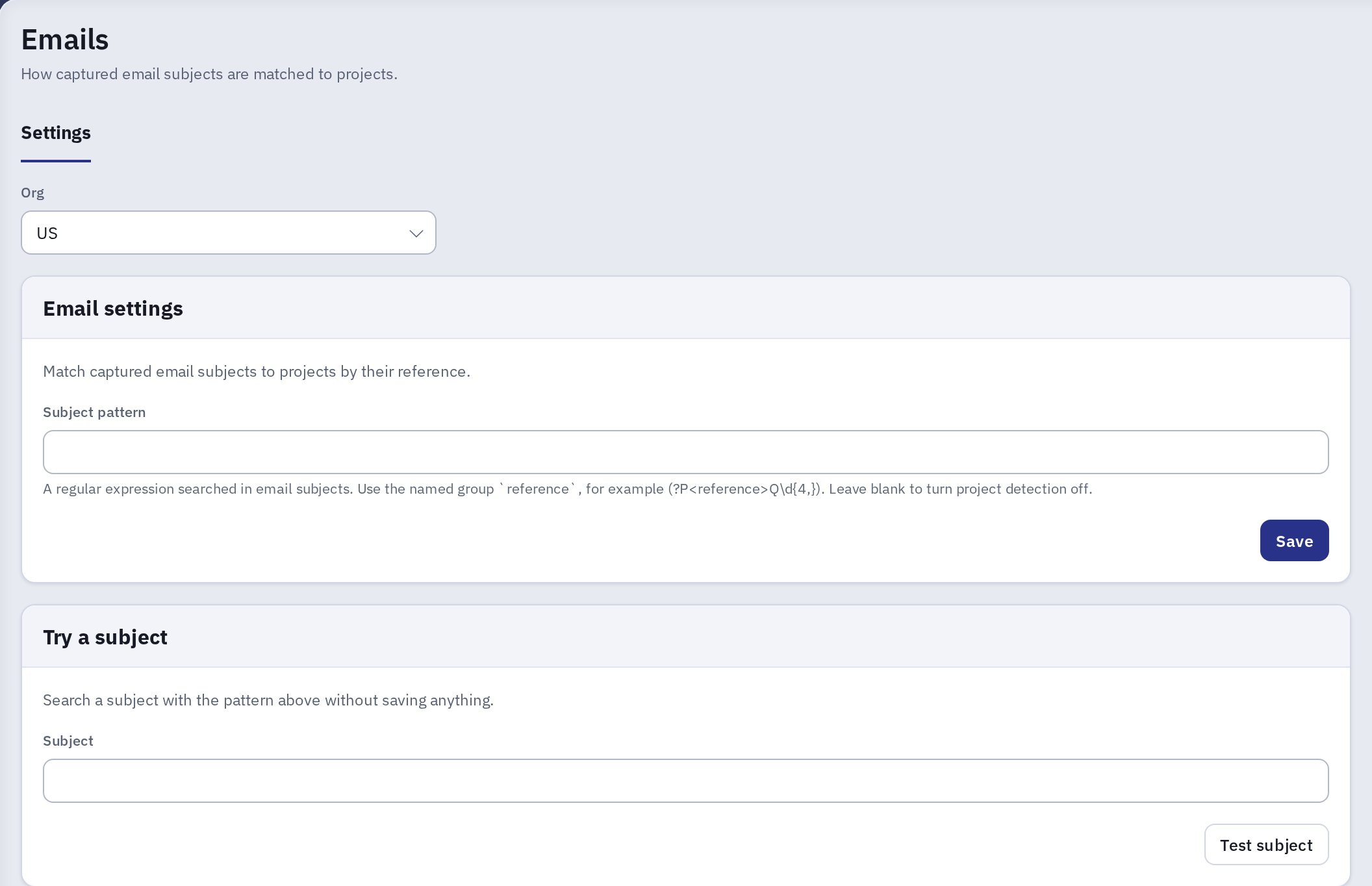
- Subject pattern is a regular expression searched in email subjects. Use a named group called
referencefor the project reference, for example(?P<reference>Q\d{4,}). Leave it blank to turn project detection off. The pattern can be up to 200 characters, with at most one named group. - Choose Save to store it for the selected org. This section has no Reset button.
- Under Try a subject, enter a subject and choose Test subject. Kompass shows the References found and the Projects they match, using the pattern as typed, without saving anything. A match here does not always mean an email is filed: Kompass links an email only when exactly one suitable project matches, and an email already linked to a project keeps it.
AI assistants
The AI assistants section is under Access on the Configuration overview. It sets what connected AI assistants, such as Claude or ChatGPT, may do with the org's data. See Connect an AI assistant to Kompass for how people connect one.
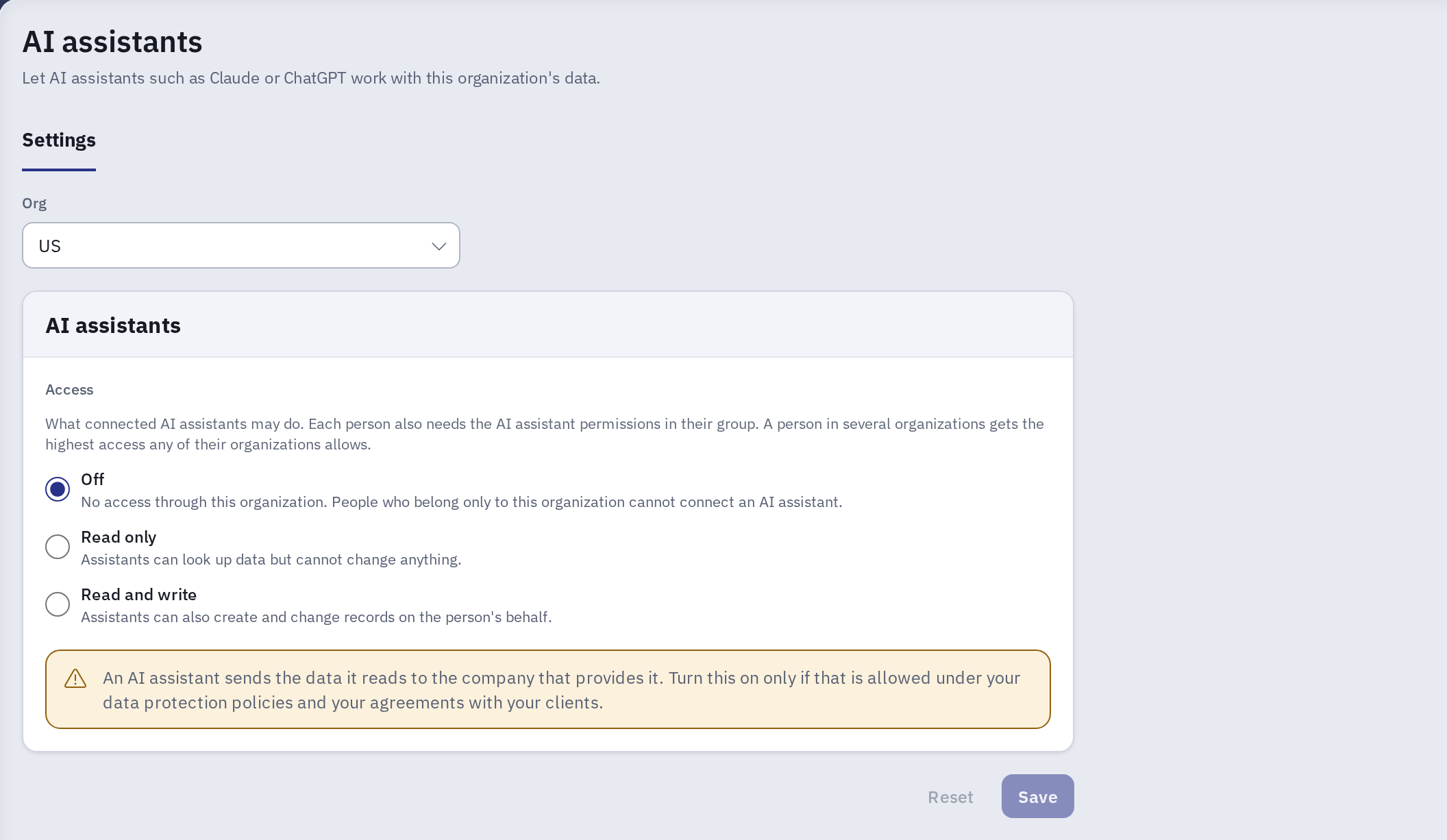
| Access | What it means |
|---|---|
| Off (default) | No access through this org. People who belong only to this org cannot connect an AI assistant. |
| Read only | Assistants can look up data but cannot change anything. |
| Read and write | Assistants can also create and change records on the person's behalf. |
- Each person also needs the AI assistant permissions in their group.
- A person in several orgs gets the highest access any of their orgs allows. That access covers everything the person can see in Kompass, so setting an org to Off does not hide its records from a person who also belongs to an org with access on. Their assistant still sees only what their own permissions allow.
- An AI assistant sends the data it reads to the company that provides it. Turn access on only if that is allowed under your data protection policies and your agreements with your clients.
- If AI assistants are not available on your account, the options are grayed out. Contact support to turn them on.
Settings for other modules
Clients, Projects, Quote items, Suppliers, Diary and Leave have Settings tabs too, in the same place and working the same way. Their settings are covered in their own articles.