
Recording client emails
Overview
Kompass can keep a record of the emails you exchange with your clients. Each message Kompass can match is filed under the contact it concerns, and under the client and project where Kompass can tell which ones apply, so users who can view emails see on the record when the client was last contacted and what was said.
Emails reach Kompass in two ways:
- Emails Kompass sends for you, such as invoices and documents sent to a client, are recorded automatically.
- Emails you send from your own mail client (Outlook, Gmail and so on) are recorded when you add your organisation's capture address as a BCC. Replies that clients send to Kompass notification emails are recorded the same way, unless the notification was sent from a person's own address or your company's own sending domain, in which case replies go to that address as usual.
Turning on email capture
Email capture is an add-on. To have it made available for your account, contact Kompass support.
Once it is available, an administrator switches it on:
- Open Kompass Admin and go to Tenant profile.
- In the Email section, tick Inbound email enabled and save.
The setting cannot be ticked until support has made the add-on available. Unticking it stops recording emails sent to the capture address; emails already recorded stay where they are, and emails Kompass sends are still recorded.
Your capture address
When email capture is on, each user can find the capture address under Settings → Profile. Use Copy to copy it.
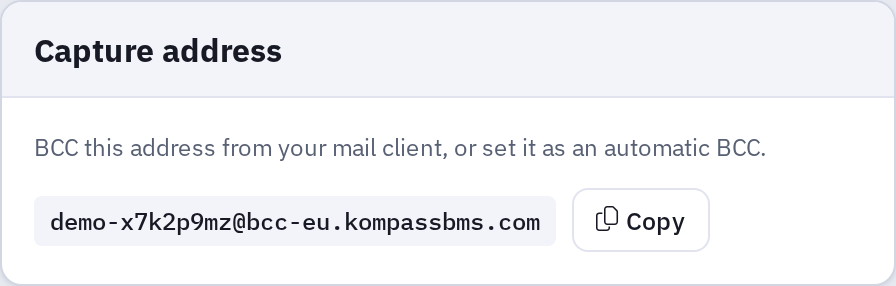
The address is the same for everyone in your organisation. To record an email, add it to the BCC line when you write to a client. If your mail system supports an automatic BCC, you can have it added to every message you send; your email administrator can tell you whether that is available.
For conversations in your own mail client, Kompass only receives the messages copied to the capture address. A client's reply comes to your own inbox, so add the capture address to the BCC line when you reply as well. Your reply is filed with the earlier emails, and if it includes the client's message as quoted text, that text is recorded too.
Note: Treat the capture address as private. It contains a code that stops other people guessing it. If it is misused, for example if you start receiving spam through it, contact Kompass support to have a new address issued. The old address stops working straight away, so let your colleagues know the new one.
How emails are matched
Kompass works out which contact an email belongs to as follows:
- Replies. A reply to an email Kompass has already recorded and linked to a contact is filed with the original, including its client and project.
- Addresses. Otherwise Kompass looks for a contact with the sender's address, then each recipient's. Your colleagues' addresses and the capture address are skipped, so an email you BCC to the capture address is matched on the client you wrote to. An active contact is preferred over an inactive one.
- If no contact matches, or several contacts share the address (a shared
info@mailbox, for instance), the email goes to the Email queue as Unmatched, so that someone can link it by hand.
Recorded emails appear in the Emails section of the contact, the client, the project and, for invoices sent from Kompass, the invoice.
The Email queue
Users who can link emails see Emails in the main menu. It opens the Email queue, which also shows the capture address at the top.
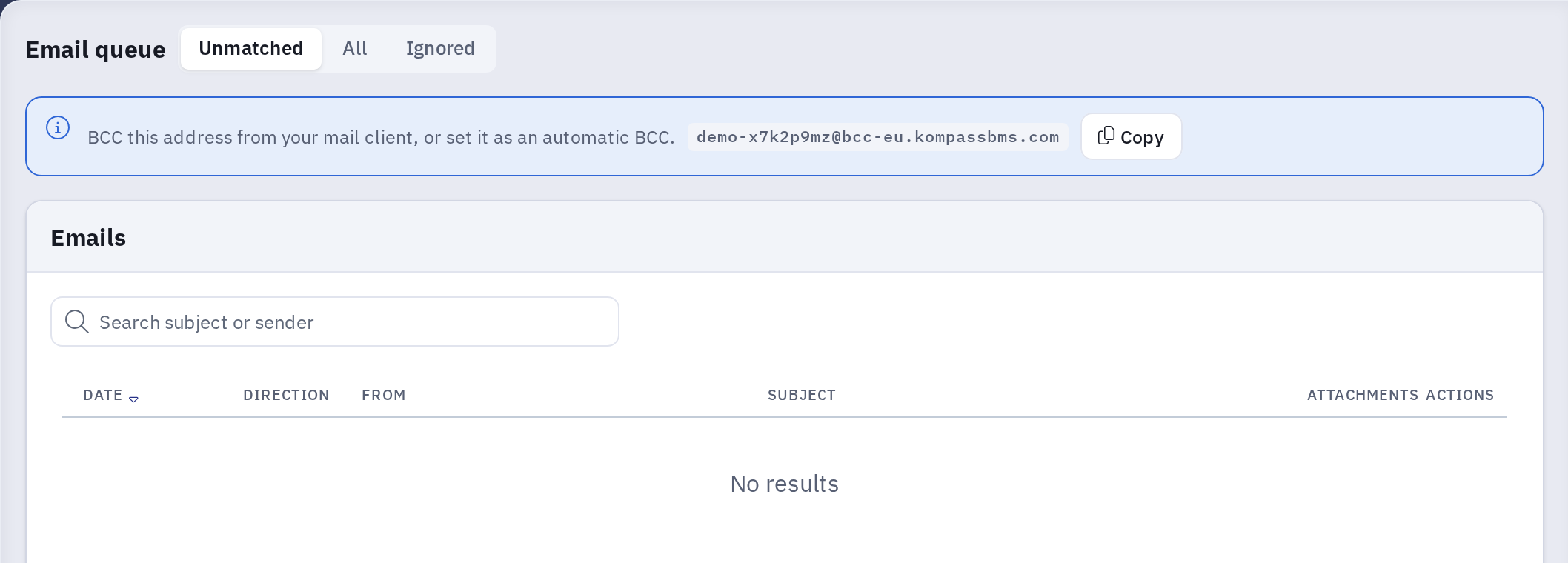
Use the buttons next to the title to show Unmatched emails (the default), All emails apart from ignored ones, or Ignored ones. Open an email and use its Actions menu to deal with it:
- Link it to a contact, client and project. When Kompass found several possible contacts, they are listed as Suggested contacts.
- Create contact from an address that matches no contact yet: the sender of an incoming email, or a recipient of an outgoing one. It goes under an existing client or a new one. This needs permission to add contacts, and to add clients for a new client. Other unmatched emails from the same address are linked to the new contact as well.
- Ignore sender or Ignore domain on an incoming email, for newsletters and other mail you do not want filed. Ignored emails are never matched, drop out of the Unmatched list and are deleted after 30 days. A whole free email domain such as gmail.com cannot be ignored, only individual addresses at it.
You can review and delete ignore rules under Settings → Email ignore rules.
Related articles
- Create a new contact
- Edit an existing contact
- Managing email recipients, for the notification emails Kompass sends