
Configuration: company settings
Three sections under Company in Configuration hold the settings that apply to your whole Kompass site: Sign-in and security, Regional, and Banner and email. A fourth, Organisations, holds the details of each of your orgs. Until now these were only available in Kompass Admin. Configuration is only available in the new design. For how to open it, see Configuration: client and expense lists.
Who can change company settings
Sign-in and security, Regional and Banner and email are controlled by the System settings permission, in the Administration area of a group's permissions. It is listed under Advanced. The stock Kompass Admins group has it. For how groups and permissions work, see Create and change user permissions.
- Edit shows these three sections in Configuration and lets you save them.
- View alone does not show them.
Organisations has its own permission, described below.
Each of the three sections saves only its own settings, and only the ones you changed. Click Save to keep your changes, or Reset to go back to the saved values. Changes apply to everyone in your company.
Organisations
Organisations lists the orgs you have access to, with their address, country, base currency and holiday calendar. An org is one of your own offices or entities, not a client.
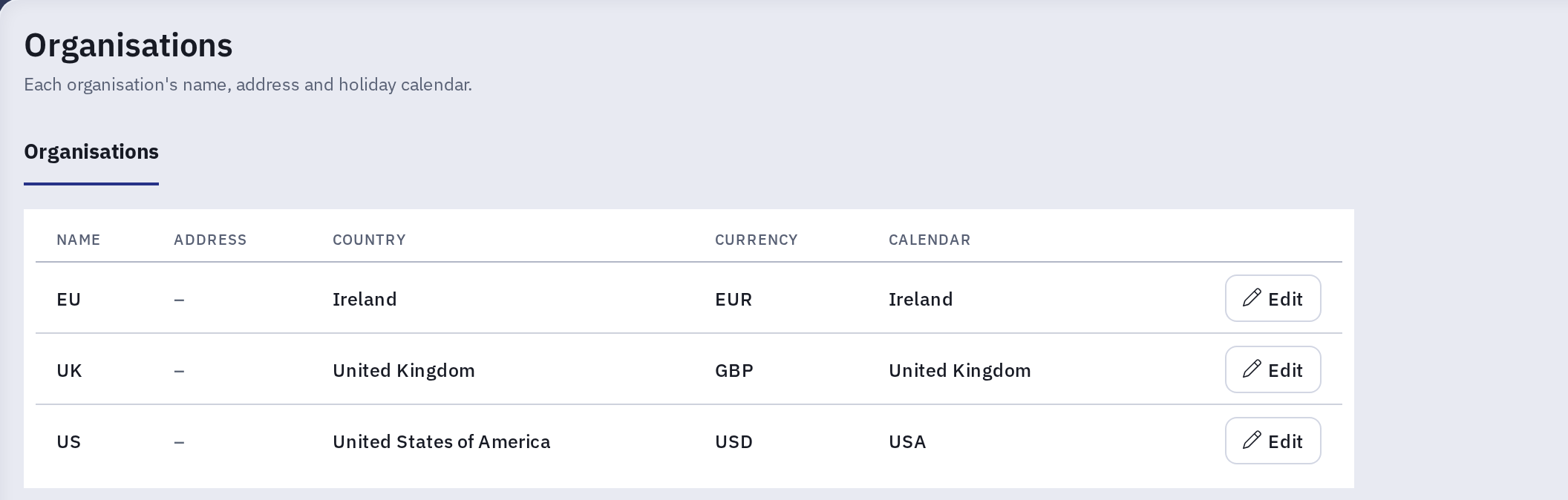
To change an org, choose Edit on its row. The Edit organisation dialog has these fields:
| Field | What it does |
|---|---|
| Name | The org's name, as shown in the org switcher and across Kompass. Required. |
| Address line 1, Address line 2, Town or city, County or state, Postal code | The org's postal address. All optional. |
| Country | The country of the address. Required. |
| Calendar | The holiday calendar the org follows. It applies to employees whose Main Org is this org and who do not have a calendar of their own. The list offers the calendars in force today, plus the org's current one. Required. See Schedules & Calendars: A Guide to Managing User Working Patterns. |
| Currency | The org's base currency. It is shown for reference and cannot be changed here, because amounts already recorded in it would be relabeled. To change it, contact Kompass support. |
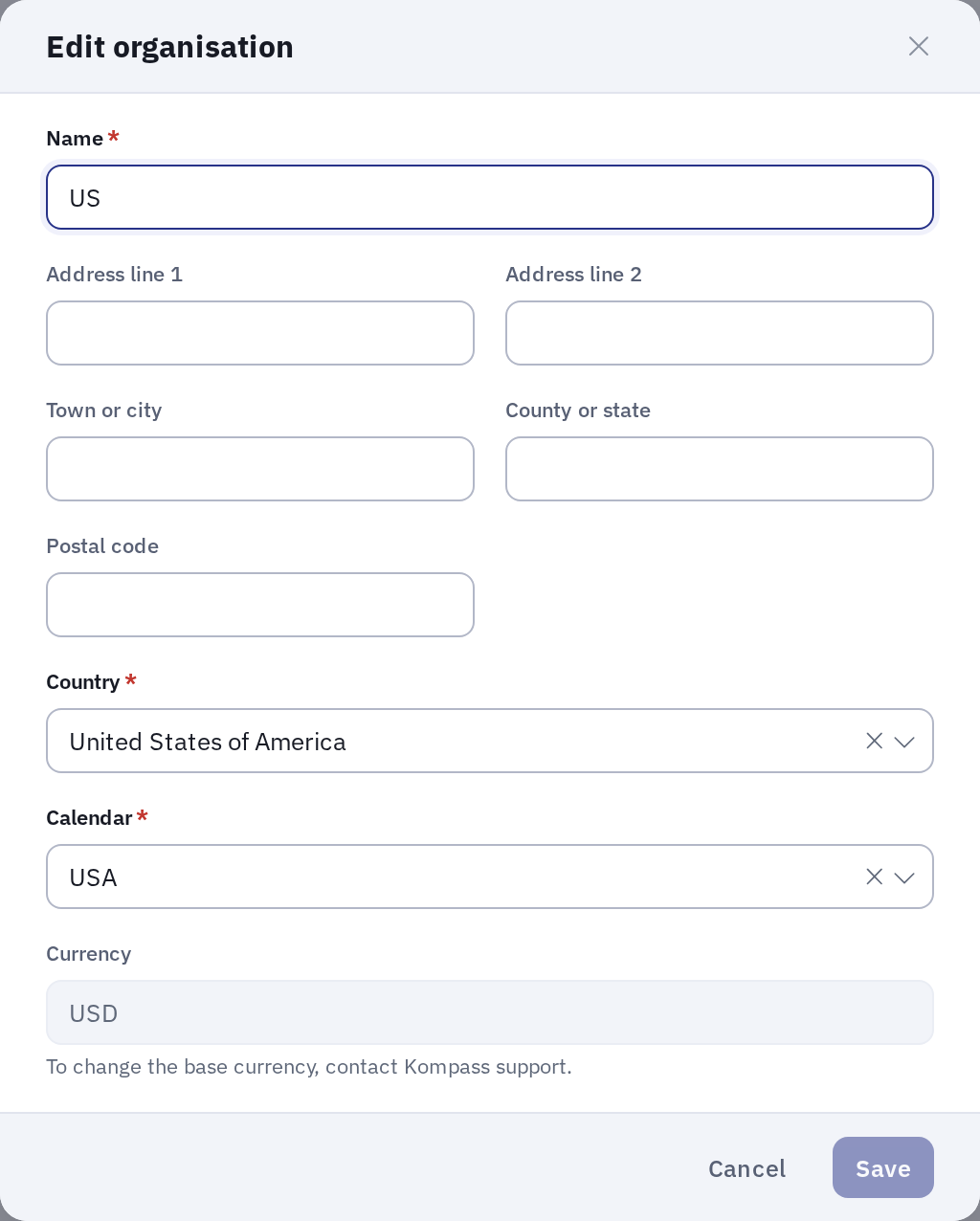
Save becomes available once you change something. It closes the dialog and the list shows the new values. Your own view of Kompass picks up a new name straight away; elsewhere the change can take up to a minute to appear.
Editing orgs needs the Company setup permission at Edit, in the Administration area of a group's permissions. The same level also covers departments and services. The stock Kompass Admins group has it.
Other org settings, such as the time zone and locale, are still set up in Kompass Admin. See Setting up a new Org.
Sign-in and security
| Setting | What it does |
|---|---|
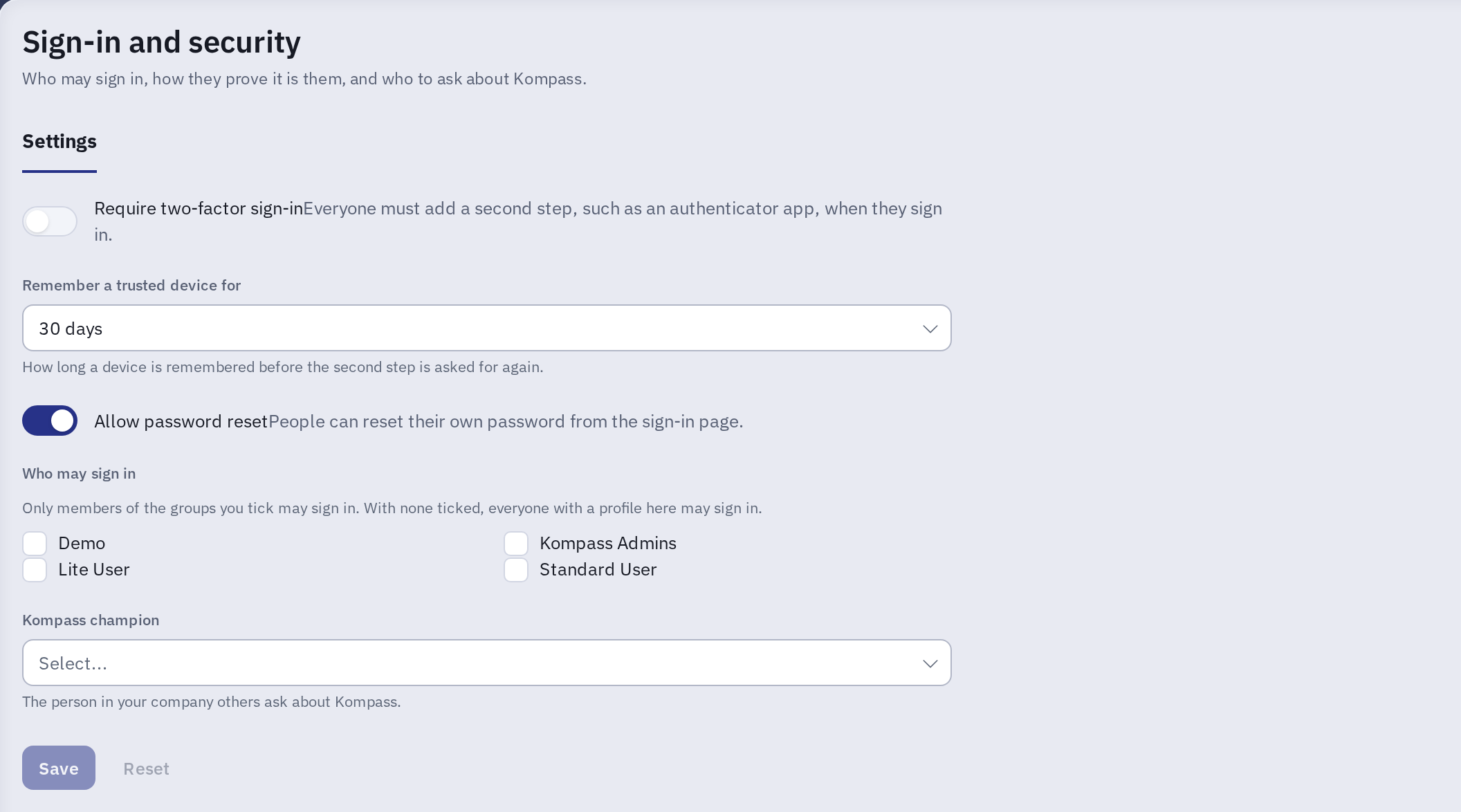
| Require two-factor sign-in | Everyone has to add a second step, such as an authenticator app, when they sign in with a Kompass password. People who sign in with Microsoft use Microsoft's own multi-factor authentication instead. See Multi-factor authentication (MFA). |
| Remember a trusted device for | How long a browser that someone has chosen to trust skips the second step: 7, 14 or 30 days, or Ask at every sign-in. |
| Allow password reset | When on, people can reset their own password with Forgot password? on the sign-in page. When off, an administrator sends them a reset link instead. See Reset user's password. |
| Who may sign in | Tick groups to let only their members sign in. With no group ticked, everyone with a Kompass account in your company may sign in. Kompass support can always sign in to help you. |
| Kompass champion | The person in your company others ask about Kompass. |
If a change could lock you out
Kompass checks two changes against your own account and asks before saving them:
- Ticking groups under Who may sign in when you are not a member of any of them. Once saved, you can no longer sign in.
- Turning on Require two-factor sign-in while you have no second step set up yourself, unless you can only sign in with Microsoft (no Kompass password). Once saved, Kompass asks you to set up a second step before you can carry on, possibly as soon as you reload the page.
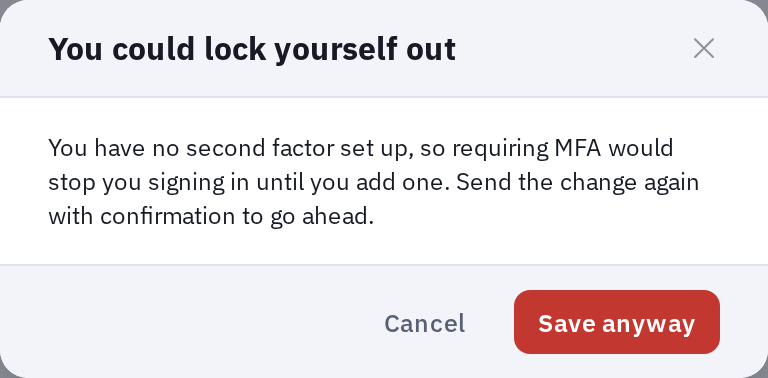
Click Cancel to keep your changes on the page without saving them, so you can fix them. For two-factor sign-in, the safest order is to set up your own second step first (see Multi-factor authentication (MFA)) and then save. Click Save anyway only if you are sure. For the sign-in groups, that means another administrator can still sign in to undo the change.
Regional
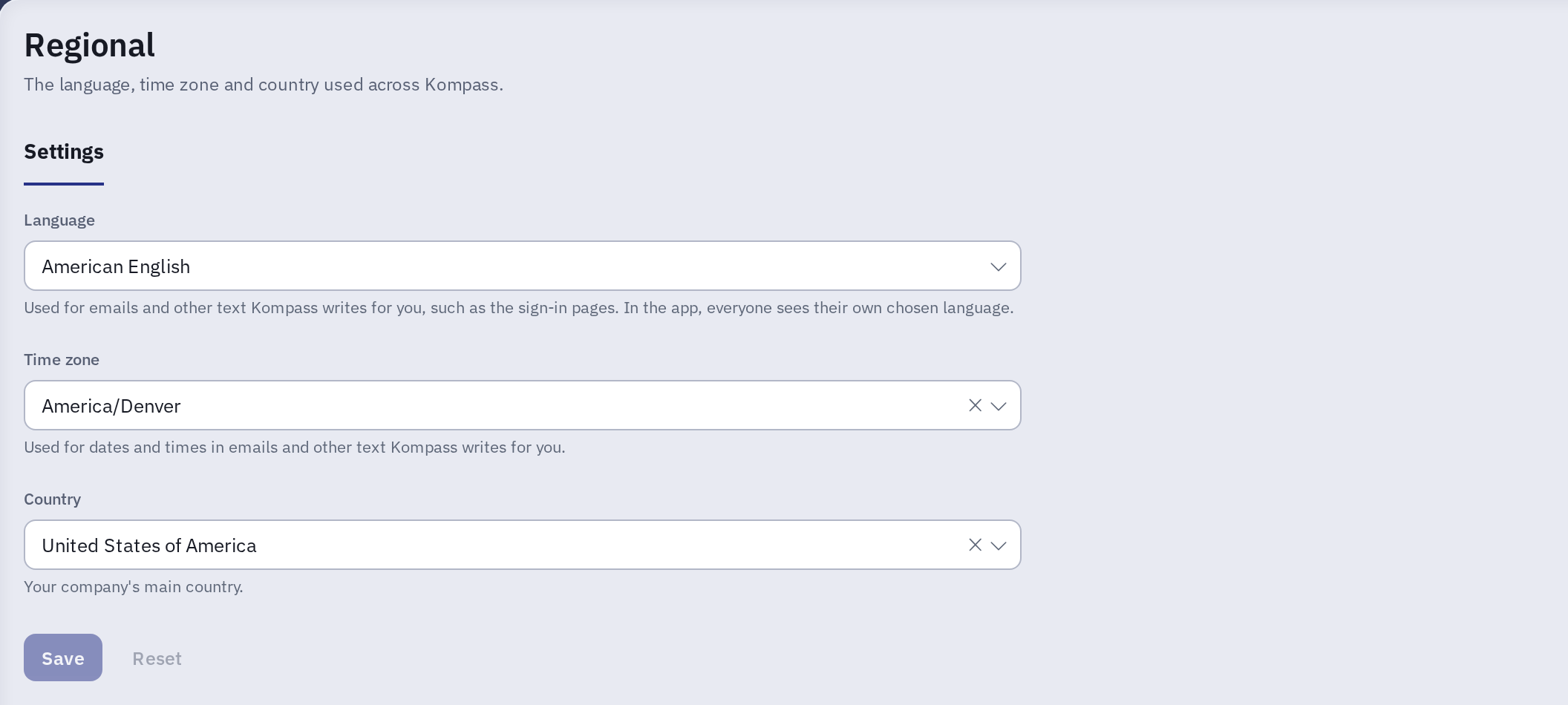
| Setting | What it does |
|---|---|
| Language | The language of emails and other text Kompass writes for your company, such as the sign-in pages. It does not change the language of the app: each person chooses their own. |
| Time zone | The time zone for dates and times in emails and other text Kompass writes for your company. |
| Country | Your company's main country. |
Each list starts with Not set, which uses the Kompass default. If your company has more than one org, each org also has its own time zone and locale, set up in Kompass Admin. See Setting up a new Org.
Banner and email
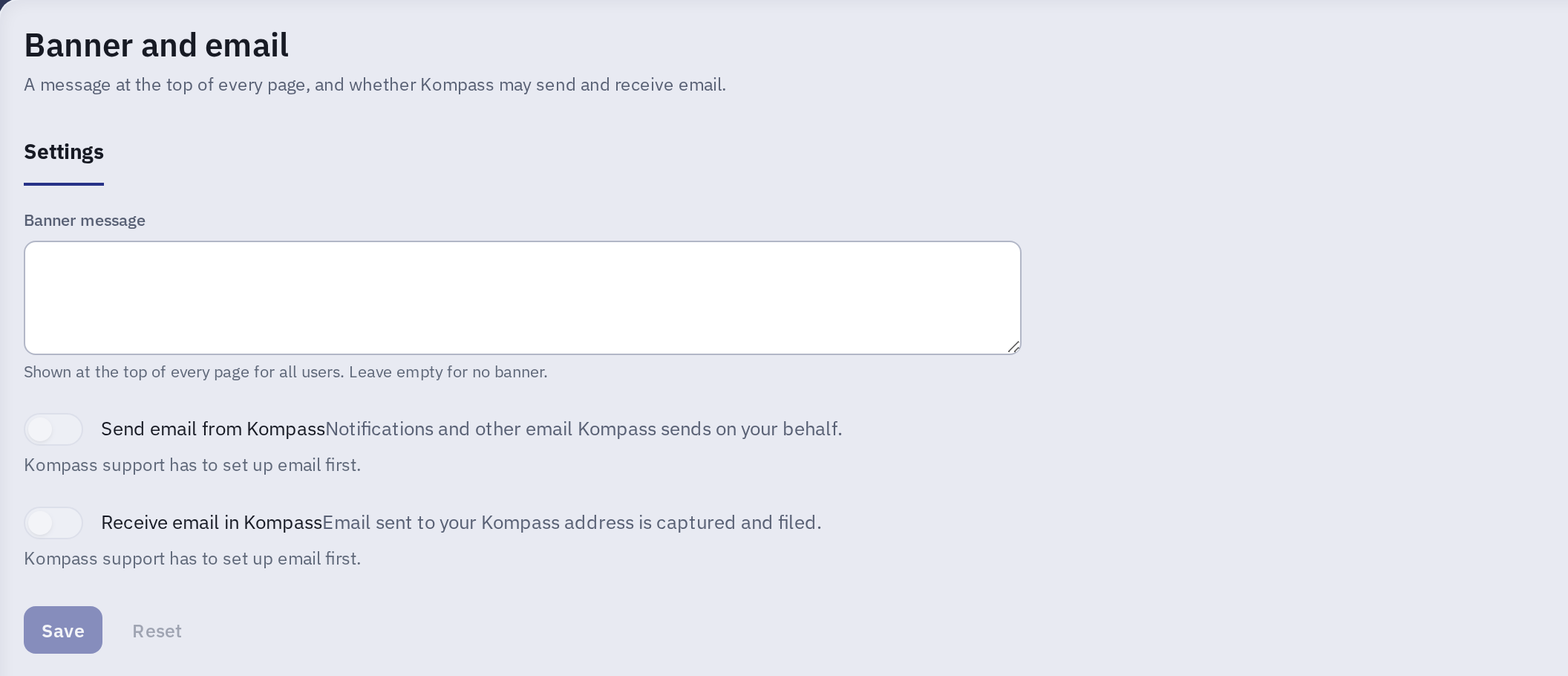
| Setting | What it does |
|---|---|
| Banner message | A message shown at the top of every page for all users, for example planned downtime or a reminder to submit timesheets. Leave it empty for no banner. |
| Send email from Kompass | Whether Kompass sends notifications and other email on your behalf. |
| Receive email in Kompass | Whether email sent to your Kompass address is captured and filed. See Recording client emails. |
The two email switches are grayed out, with the note Kompass support has to set up email first, until Kompass support has set up email for your company. Contact Kompass support to have it set up.
Other people see a new banner the next time they open or reload Kompass.