
Managing email recipients
Overview
Kompass sends automated emails from eight distinct areas of the platform, each with its own set of templates and recipient controls. All templates are managed through the Admin site and follow the same pattern: you configure one or more recipient addresses on each template, and Kompass resolves those addresses at send time. Alongside standard email addresses, every template type supports magic email addresses, special placeholders that resolve dynamically to the right person based on who is involved in the record being sent.
This article covers every email area in Kompass, where to find the recipient settings, and a full reference for all magic email addresses.
Part 1: How Recipients Work
Static addresses
You can enter any real email address directly into the Recipients field of a template. That address will receive every email sent by that template, regardless of which record triggered it.
Magic email addresses
Magic addresses use the format [email protected] . Instead of going to a fixed inbox, they resolve at send time to whoever holds that role on the specific record. For example, [email protected] on a project email template will send to whichever user is the project manager on each project, so a single template covers all projects without needing a fixed address.
If a magic address cannot be resolved, for example, a project has no manager assigned, that recipient is silently skipped and no error is raised.
BCC
Several template types also have a separate BCC field. Any address entered there is blind-copied on every email sent by that template, regardless of the recipients field. This is useful for compliance or monitoring inboxes. BCC is available on: Projects, Proposal Items, Tasks, Clients, and Invoices. It is not available on Comments, Expenses, or Leave.
Part 2: Email Areas and Where to Configure Them
1. Projects
Admin path: Admin → Projects → Email Templates
When emails are sent: Whenever a project moves through a workflow stage. One email template can be created per trigger. If multiple templates exist for the same trigger on the same org, all of them fire.
Available triggers:
| Trigger | When it fires |
|---|---|
| Created | A new project is created |
| Requested | The Requested date is set |
| Quoted | The Quoted date is set |
| Accepted | The project is accepted (first proposal item accepted) |
| Surveyed | The Surveyed date is set |
| Processed | The Processed date is set |
| Checked | The Checked date is set |
| Delivered | The Delivered date is set |
| Invoiced | The Invoiced date is set |
| Received | The Received date is set |
| Suspended | The project is suspended |
| Unsuspended | The suspension is cleared |
| Abandoned | The project is abandoned |
| Modified | Any change is saved on the project (always fires alongside the above) |
| Document sending | A document is manually sent from the project |
Available magic addresses:
| Magic address | Resolves to |
|---|---|
[email protected] |
User who set the abandoned date |
[email protected] |
User who checked the project |
[email protected] |
User who created the project |
[email protected] |
User who marked the project delivered |
[email protected] |
User who set the invoiced date |
[email protected] |
Project manager |
[email protected] |
User who made the most recent change |
[email protected] |
User who processed the project |
[email protected] |
User who quoted the project |
[email protected] |
User who set the received date |
[email protected] |
User who surveyed the project |
[email protected] |
User who suspended the project |
Note: The Document Sending trigger fires when a user manually emails a document from a project. The project's Invoice Contacts list (set on the project itself) determines the document recipients for that send. These are separate from the email template recipients configured here.
2. Proposal Items
Admin path: Admin → Quote_Items → Email Templates
When emails are sent: When a proposal item changes state within a project.
Available triggers:
| Trigger | When it fires |
|---|---|
| Created | A new proposal item is created |
| Accepted | The proposal item is accepted |
| Delivered | The parent project is delivered |
| Closed | A closed date is set on the proposal item |
| Reopened | The closed date is cleared |
| Abandoned | The project is abandoned and the proposal item was not accepted |
| Cancelled | The project is abandoned and the proposal item was accepted |
| Modified | Any change is saved (always fires alongside the above) |
Available magic addresses:
| Magic address | Resolves to |
|---|---|
[email protected] |
Contact who accepted the proposal item |
[email protected] |
User who created the proposal item |
[email protected] |
User who last modified the proposal item |
[email protected] |
Manager of the parent project |
[email protected] |
User who quoted the parent project |
3. Tasks
Admin path: Admin → Tasks → Email Templates
When emails are sent: When a task is created, assigned, scheduled, completed, or closed.
Available triggers:
| Trigger | When it fires |
|---|---|
| Created | A new task is created |
| Assigned | A user is added to the task's team |
| Unassigned | A user is removed from the task's team |
| Scheduled | The task is placed on the schedule |
| Assignment done | A specific team member marks their assignment complete |
| Assignment undone | A completed assignment is marked incomplete again |
| Task done | All team members have marked the task complete |
| Closed | A closed date is set on the task |
| Modified | Any change is saved (always fires alongside the above) |
Available magic addresses:
| Magic address | Resolves to |
|---|---|
[email protected] |
All users currently assigned to the task |
[email protected] |
The specific user being assigned (Assigned trigger only) |
[email protected] |
The specific user being removed (Unassigned trigger only) |
[email protected] |
The user who marked their assignment done |
[email protected] |
User who created the task |
[email protected] |
User who last modified the task |
[email protected] |
Manager of the task's parent project |
[email protected] |
User who quoted the task's parent project |
4. Clients
Admin path: Admin → Clients → Email Templates (Clients)
When emails are sent: When a client record is created or certain contacts or managers change.
Available triggers:
| Trigger | When it fires |
|---|---|
| Created | A new client is created |
| Manager changed | The client's account manager is changed |
| Primary contact changed | The primary contact on the client is changed |
| Billing contact changed | The billing contact on the client is changed |
| Inactive | The client is marked inactive |
| Modified | Any change is saved (always fires alongside the above) |
Available magic addresses:
| Magic address | Resolves to |
|---|---|
[email protected] |
The client's billing contact |
[email protected] |
User who created the client record |
[email protected] |
The client's account manager |
[email protected] |
User who last modified the client |
[email protected] |
The client's primary contact |
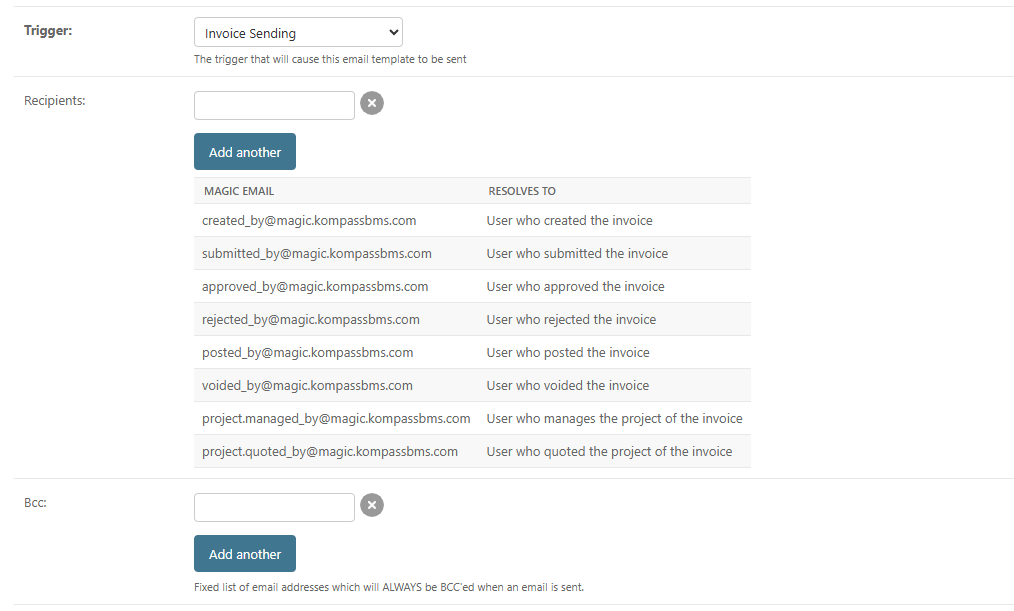
5. Invoices
Admin path: Admin → Clients → Invoice Email Templates
When emails are sent: When an invoice moves through its approval workflow, or when it is manually sent to a client.
Available triggers:
| Trigger | When it fires |
|---|---|
| Created | A new invoice is created |
| Submitted | The invoice is submitted for approval |
| Approved | The invoice is approved |
| Rejected | The invoice is rejected |
| Posted | The invoice is posted |
| Voided | The invoice is voided |
| Invoice sending | The invoice is manually sent to the client |
| Modified | Any change is saved (always fires alongside the above) |
Note: The Invoice Sending trigger is special. It is triggered manually from the invoice and the sender identity is set to the requesting user's name and email, not the platform default.
Available magic addresses:
| Magic address | Resolves to |
|---|---|
[email protected] |
User who created the invoice |
[email protected] |
User who submitted the invoice |
[email protected] |
User who approved the invoice |
[email protected] |
User who rejected the invoice |
[email protected] |
User who posted the invoice |
[email protected] |
User who voided the invoice |
[email protected] |
Manager of the invoice's parent project |
[email protected] |
User who quoted the invoice's parent project |
6. Expenses
Admin path: Admin → Expenses → Email Templates
When emails are sent: When an expense record is created, assigned, submitted, or reaches a decision point.
Available triggers:
| Trigger | When it fires |
|---|---|
| Created | A new expense is created |
| Assigned | The expense is assigned to a user |
| Submitted | The expense is submitted for approval |
| Checked | The expense is checked |
| Approved | The expense is approved |
| Rejected | The expense is rejected |
| Modified | Any change is saved (always fires alongside the above) |
Available magic addresses:
| Magic address | Resolves to |
|---|---|
[email protected] |
The user the expense is assigned to |
[email protected] |
The manager of the assigned user |
[email protected] |
User who created the expense |
[email protected] |
User who submitted the expense |
[email protected] |
User who checked the expense |
[email protected] |
User who approved the expense |
[email protected] |
User who rejected the expense |
[email protected] |
User who last modified the expense |
[email protected] |
Manager(s) of the project(s) the expense is allocated to |
7. Leave
Admin path: Admin → Leave → Email Templates
When emails are sent: When a leave request is made or a decision is recorded.
Available triggers:
| Trigger | When it fires |
|---|---|
| (blank) | A new leave request is submitted |
| Approved | The leave request is approved |
| Denied | The leave request is denied |
Note: When a leave request is approved, Kompass automatically attaches an ICS calendar invite to the email so the recipient can add the leave to their calendar.
Available magic addresses:
| Magic address | Resolves to |
|---|---|
[email protected] |
The employee who requested leave |
[email protected] |
The employee's manager |
[email protected] |
The employee's manager if set; otherwise the org's directors |
[email protected] |
The org's director-level users |
[email protected] |
Users with permission to approve leave for their own department |
8. Comments
Admin path: Admin → Comments → Email Templates
When emails are sent: Whenever a comment is posted on a project, proposal item, or other commentable record. Unlike other template types, there is one comment template per org rather than per trigger. All comment notifications use the same template.
Available magic addresses:
| Magic address | Resolves to |
|---|---|
[email protected] |
User who posted the comment |
[email protected] |
User who last edited the comment |
[email protected] |
Any users @mentioned in the comment body |
Note: Comment emails automatically include any files attached to the comment as email attachments.
Part 3: Digest Emails
Admin path: Admin → Digests → Digests
Digests are scheduled summary emails that run automatically on a cron schedule. Unlike the event-driven templates above, they do not fire in response to a specific action. They collect and summarise data from across the platform (equipment calibration dates, qualifications expiry, pending leave, and open proposals) and deliver it on a schedule you define.
Recipient configuration
Digest recipients are configured differently from the event templates. Instead of a Recipients array, digests have three Jinja template fields:
| Field | Description |
|---|---|
| To template | Jinja template rendered at send time. The variable users_active is available, containing all active users in the org. |
| CC template | Same as To template, rendered as CC recipients. |
| BCC template | Same as To template, rendered as BCC recipients. |
This means you can dynamically build the recipient list from active users rather than hardcoding addresses. For example, {{ users_active | map(attribute='email') | join(', ') }} would send the digest to every active user.
Individual vs batch mode
Each digest has an Individual toggle. When enabled, Kompass sends a separate email per recipient with a user context variable in the template, allowing the email body to be personalised for each recipient. When disabled, one email is sent to all recipients together.
Opt-out
Individual users can be opted out of a digest without modifying the template. Go to Admin → Digests → User Digests and create a record linking the user and the digest with Disabled ticked. That user will be excluded from future sends of that digest.
Part 4: Document and Report Templates (Sending, Not Notifications)
Document templates (proposals, invoices, letters) and report templates (Excel exports) do not have their own email notification templates. When a document is sent from a project, the recipients come from the Invoice Contacts list on the project record, not from any Admin template.
To update who receives documents sent from a project, go to the project's detail page and update the Invoice Contacts field. This controls who is emailed when a document is sent using the Document Sending action.
Report templates are downloaded directly by the user who requests them. They are not emailed automatically.
Part 5: The Sender Address
All automated emails are sent from the default platform sender address configured in the system settings (DEFAULT_FROM_EMAIL ). Each email template has a Sender template field that can override this on a per-template basis using a Jinja expression.
The one exception is the Invoice Sending trigger. When an invoice is manually sent, the sender identity is set to the requesting user's name and email address rather than the platform default.