
Configuration: equipment, supplier and leave lists
The Equipment, Suppliers and Leave sections in Configuration hold the lists that equipment, supplier records and leave requests are filed under. They work like the client lists: how to open Configuration, who sees each section, and how to add, edit, end, delete, merge, export and import values are all described in Configuration: client and expense lists. This article covers what is particular to each list.
Equipment lists
The Equipment section has three lists:
- Equipment categories: the kind of equipment, such as drones or levels. Each category has a color.
- Equipment owners: who owns an item of equipment.
- Equipment tags: free tags for equipment, each with a color.
Categories and owners are enabled per Org, and are offered on equipment only in the Orgs they are enabled for. If you have access to more than one Org, the lists show an Orgs column. Tags are not tied to an Org.
An equipment category can only be merged into one that is enabled for exactly the same Orgs, because each Org sees equipment through its categories. Changing a category's Orgs also changes which Orgs see the equipment in it, so do that only if the Orgs should share that equipment.
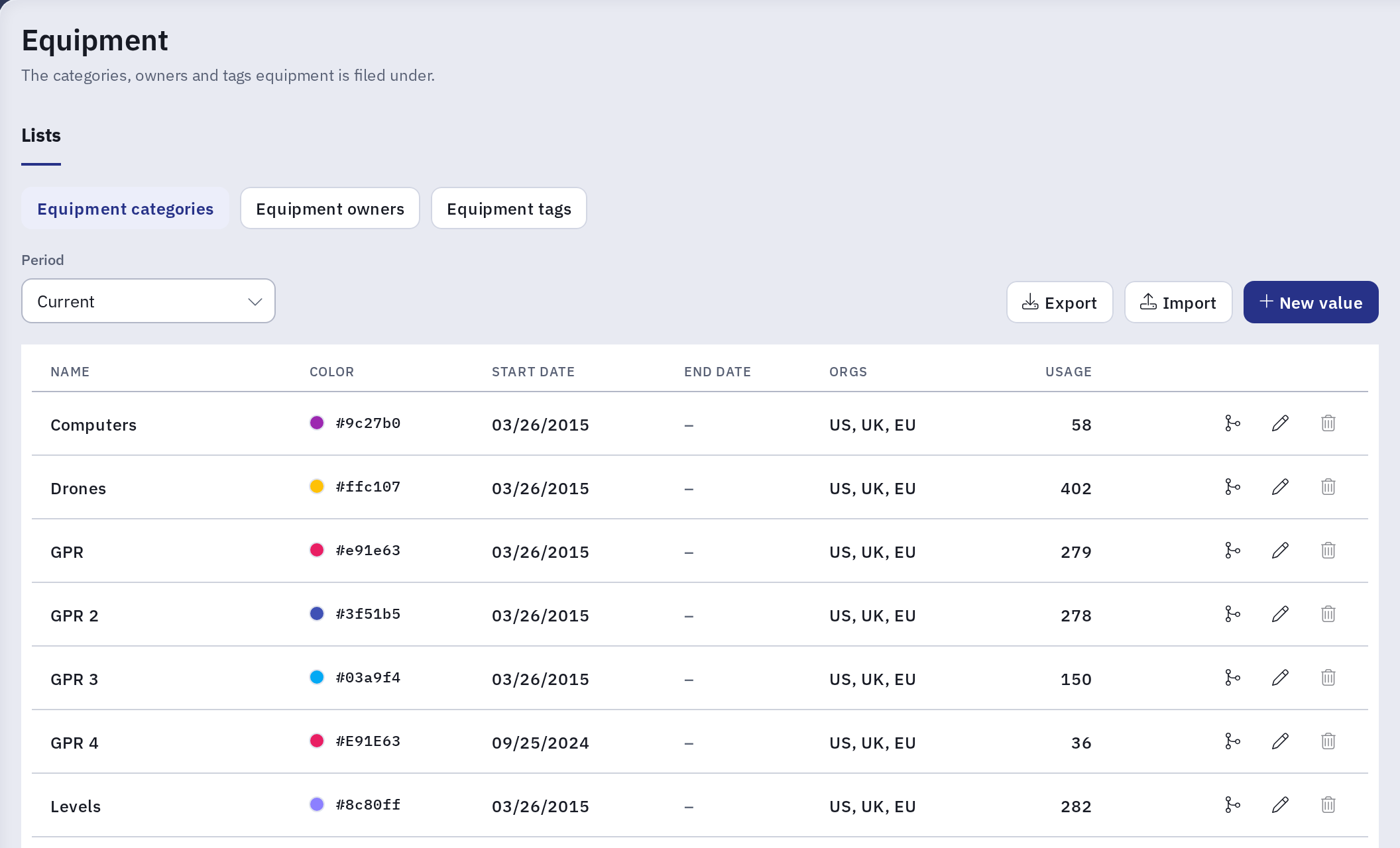
For planning your categories and owners, see Unit 8 - Equipment. To add equipment, see Add new equipment.
Supplier lists
The Suppliers section has four tag lists: Supplier tags, Purchase order tags, Bill tags and Bill payment tags. Each tag has a color, and none of them is tied to an Org. As with client tags, tags are typed on records rather than picked from a list, and Kompass suggests the tags already in use. Ending a tag does not stop anyone from typing it.
For purchase orders, bills and bill payments, see Purchase Orders, Bills and Bill Payments.
Leave types
The Leave section holds the leave types that employees choose when they request leave. Besides the name and dates, each leave type has two settings:
| Setting | What it does |
|---|---|
| Schedule label | The text shown for this leave on the Schedule instead of the leave type's name, so colleagues can see that someone is away without seeing why. If you leave it empty, it is saved as Leave. |
| Category | Annual leave makes leave of this type count against the employee's annual leave allowance. Leave of a type with any other category, or No category, does not. Moving a type into or out of Annual leave, by editing or importing it, recalculates the balances of every employee with leave of that type, including leave already approved. |
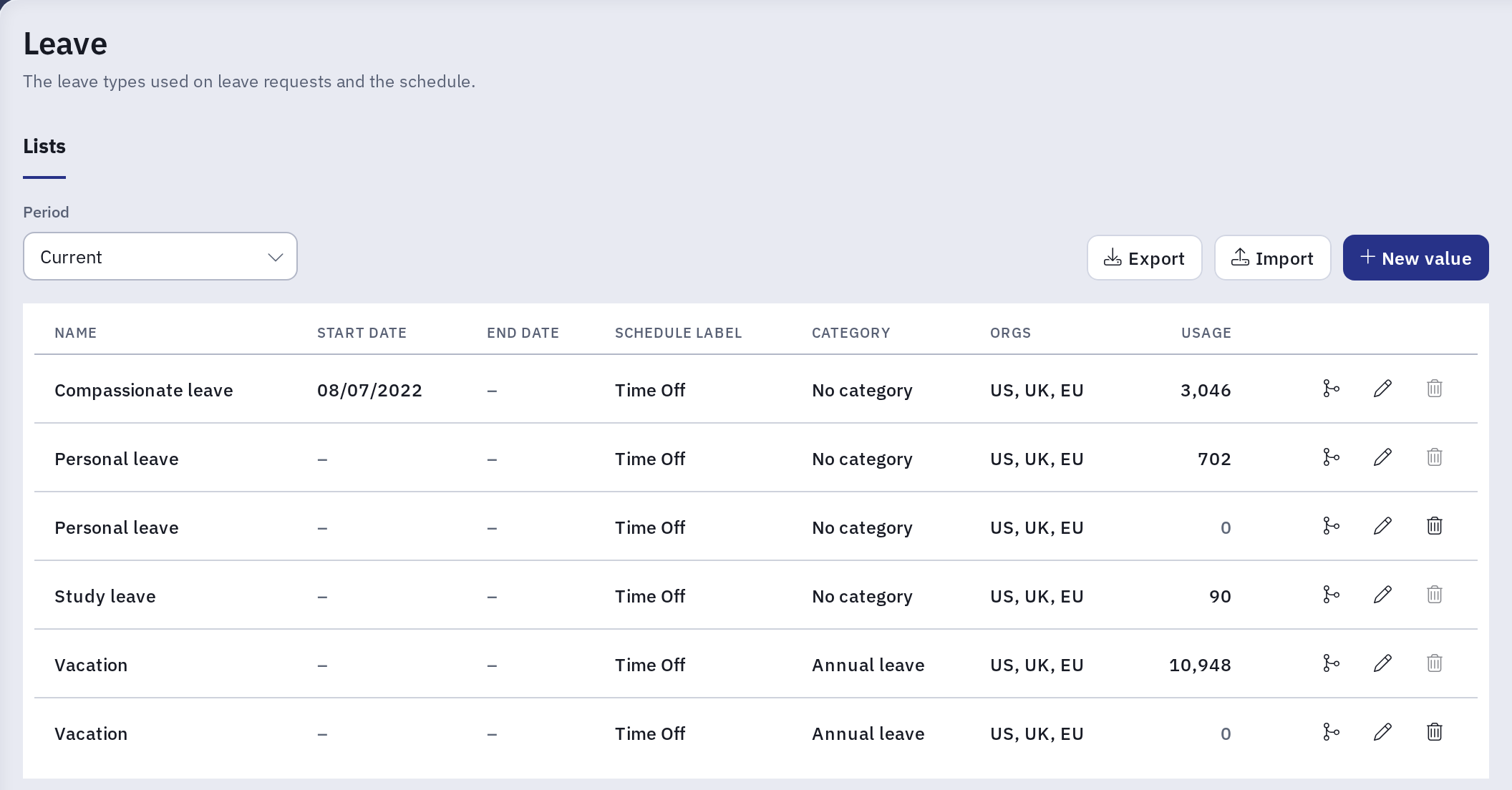
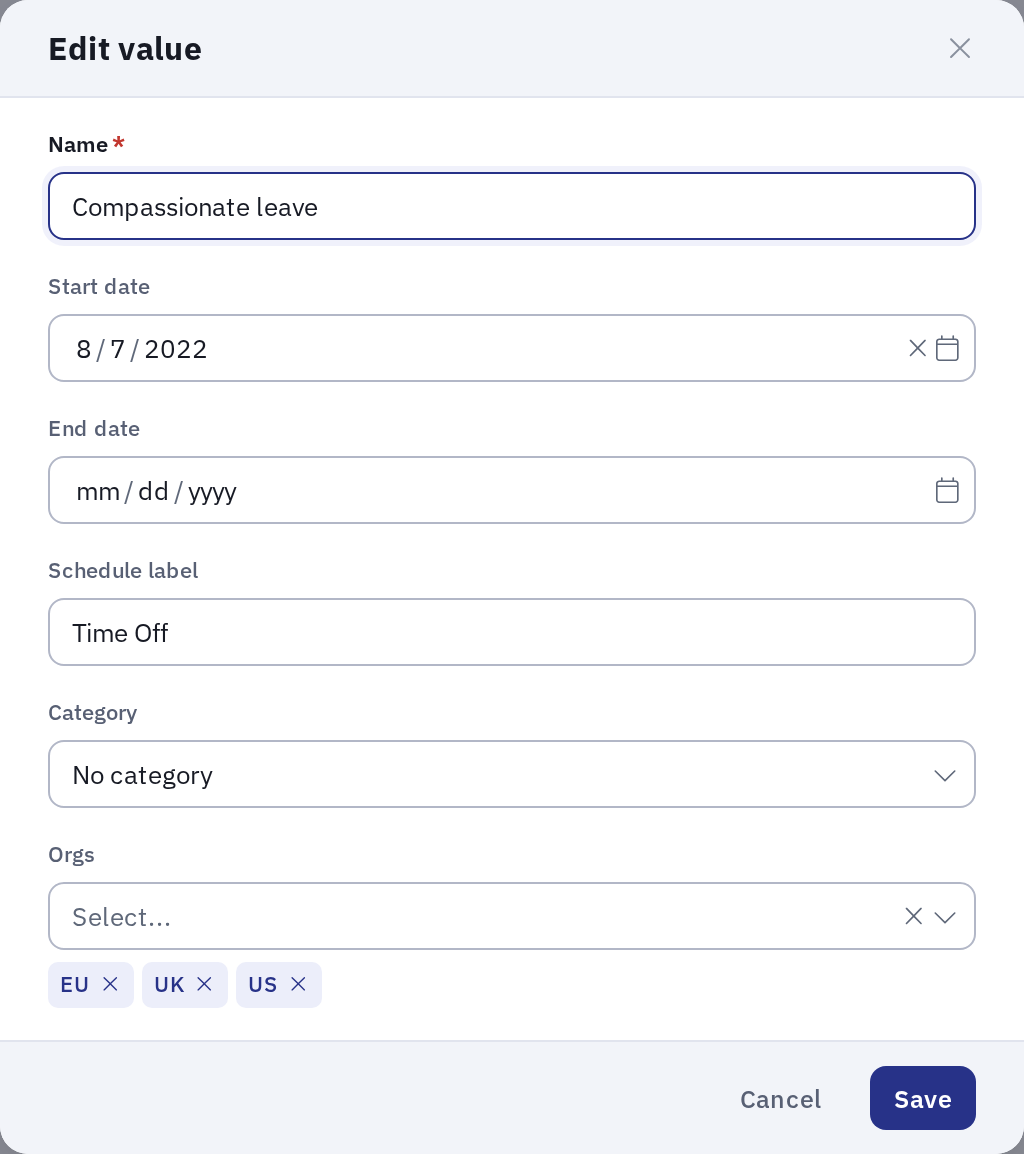
Leave types are enabled per Org, and employees can choose a leave type only in the Orgs it is enabled for. If you have access to more than one Org, the list shows an Orgs column.
- Merging: a leave type can only be merged into one that counts against allowances the same way, so both Annual leave or neither. Otherwise merging would change employees' leave balances.
- Export and import have two more columns:
labelfor the schedule label, andcategory, which isAfor annual leave,Sfor sick leave, or empty for no category.
For planning your leave types, see Unit 10 - Leave. For leave requests, see Create a leave request.
From the equipment, supplier and leave lists
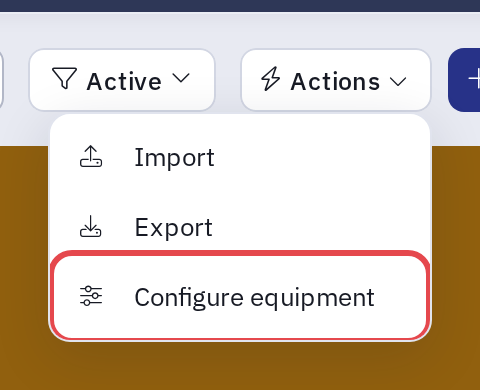
The Actions menu on the equipment, supplier and leave lists has Configure equipment, Configure suppliers or Configure leave. Each opens the matching Configuration section, with a Back to button that returns you to the list. The menu item shows only to users who can add, change or delete at least one of the section's lists.
Kompass Admin
These lists can still be edited in Kompass Admin, but Configuration is the recommended place.