
Purchase Orders, Bills, and Bill Payments
Overview
Alongside the Suppliers page, Kompass now lets you track the full purchasing lifecycle with a supplier: raising a Purchase Order, recording the Bill you receive for it, and logging the Bill Payment you make to settle it. These three areas work together but can also be used independently. You can record a bill with no purchase order, for example, if your supplier doesn't require one.
This is the accounts payable side of Kompass, what you owe your suppliers, distinct from Invoices and Payments, which track what your clients owe you.
| Step | What it represents | Required? |
|---|---|---|
| Purchase Order | What you've ordered from a supplier | No, optional |
| Bill | What the supplier has billed you for | Yes, the core record |
| Bill Payment | What you've paid the supplier | No, recorded once you actually pay |
Purchase Orders
A Purchase Order records what you've ordered from a supplier before you're billed for it.
Creating a Purchase Order
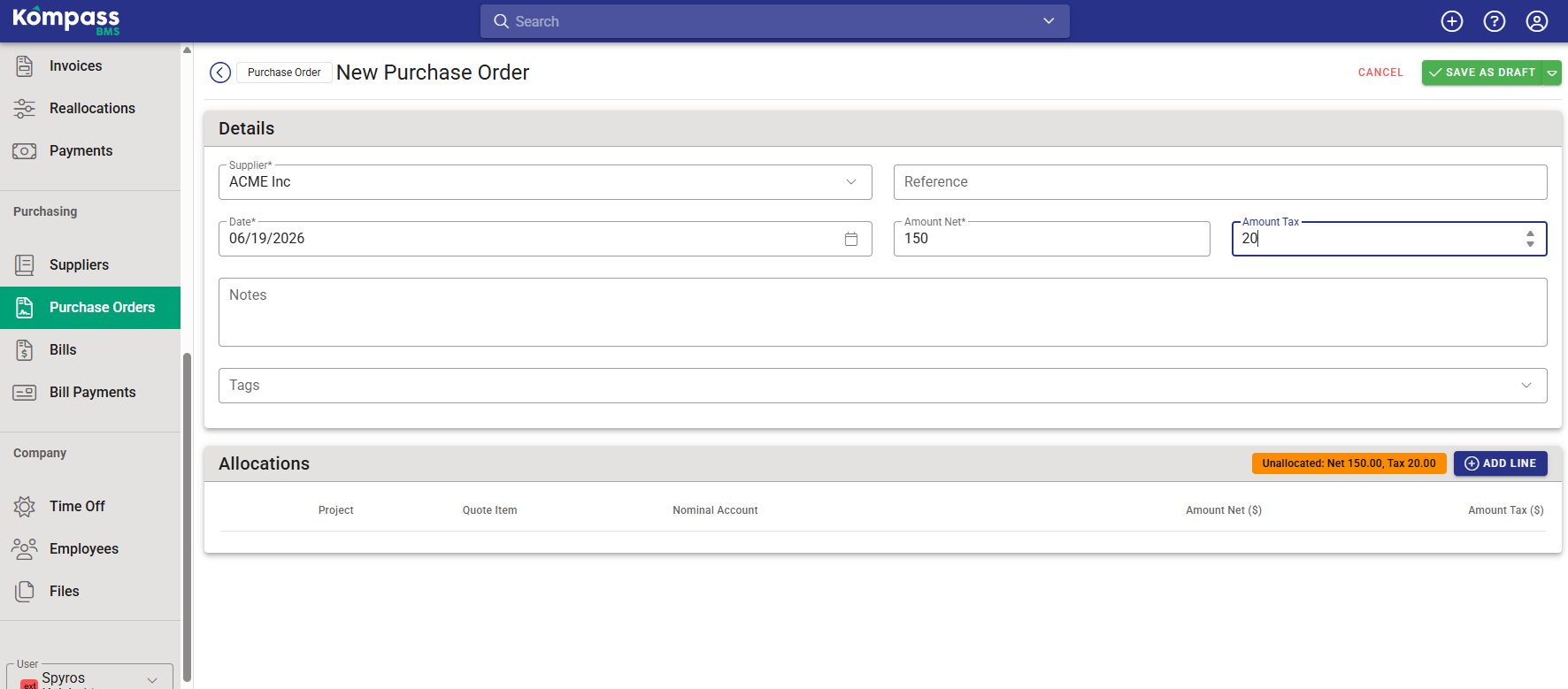
Go to Purchase Orders and click Create. Fill in:
- Supplier: required
- Reference: optional; leave blank and Kompass can auto-generate one for you based on your organisation's settings
- Date: required
- Amount Net and Amount Tax: the expected order value
- Notes and Tags: optional
A new Purchase Order saves as a Draft. From a draft, you can either keep editing or use the split Save button to Save & Issue in one step if you're ready to send it.
Purchase Order statuses
| Status | Meaning |
|---|---|
| Draft | Being prepared: not yet sent to the supplier |
| Issued | Sent to the supplier: counts as a real, open order |
| Closed | Finished with: either fulfilled or shelved |
A Draft can move to Issued or be Closed directly (for example, if you decide not to proceed). An Issued order can only be Closed. Closed is final, there's no "cancel" status; if you created a draft by mistake, simply delete it instead.
Note: Only Issued and Closed purchase orders count toward a supplier's order total. Drafts are excluded, since they're not yet a confirmed commitment.
Allocating a Purchase Order to projects
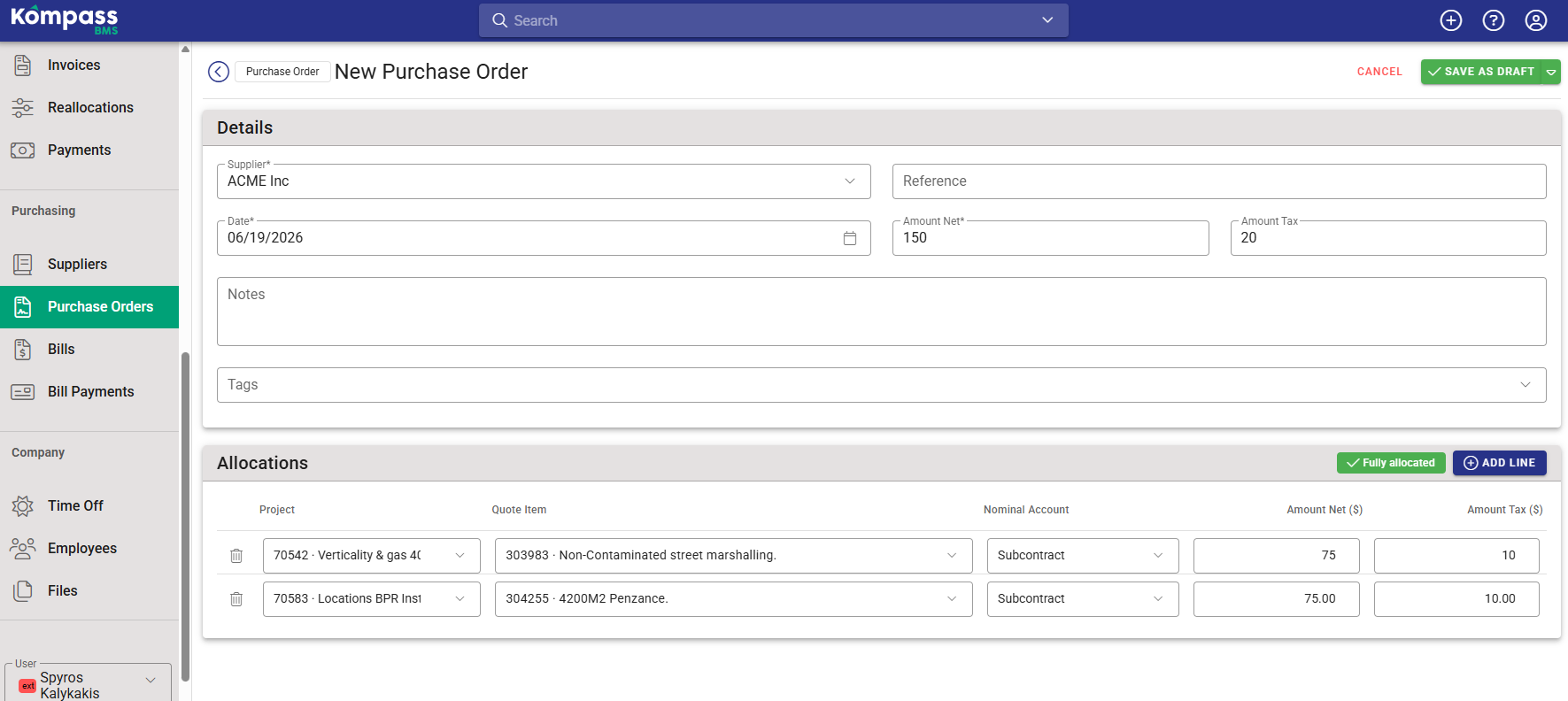
Below the order details, the Allocations section lets you code the order to one or more projects (Proposal Items) and Nominal Accounts. Click Add Line to add a row, and choose the Project, Proposal Item, and Nominal Account for each portion of the order. A banner at the top of this section shows whether the order is fully allocated, unallocated, or overallocated, comparing your allocation lines against the order's net and tax totals.
Bills and Payments linked to a Purchase Order
Once a Purchase Order is saved, its detail page shows any Bills and Bill Payments that have been linked to it underneath the order details, so you can see the full picture of an order at a glance without leaving the page.
Bills
A Bill is a record of what a supplier has billed you. Unlike a Purchase Order, a Bill is not tied to a single project. Each line of a bill can be coded to a different project, so one bill from a supplier can cover several jobs at once.
Creating a Bill
Go to Bills and click Create. Fill in:
- Supplier: required
- Reference: optional, can auto-generate
- Date: required
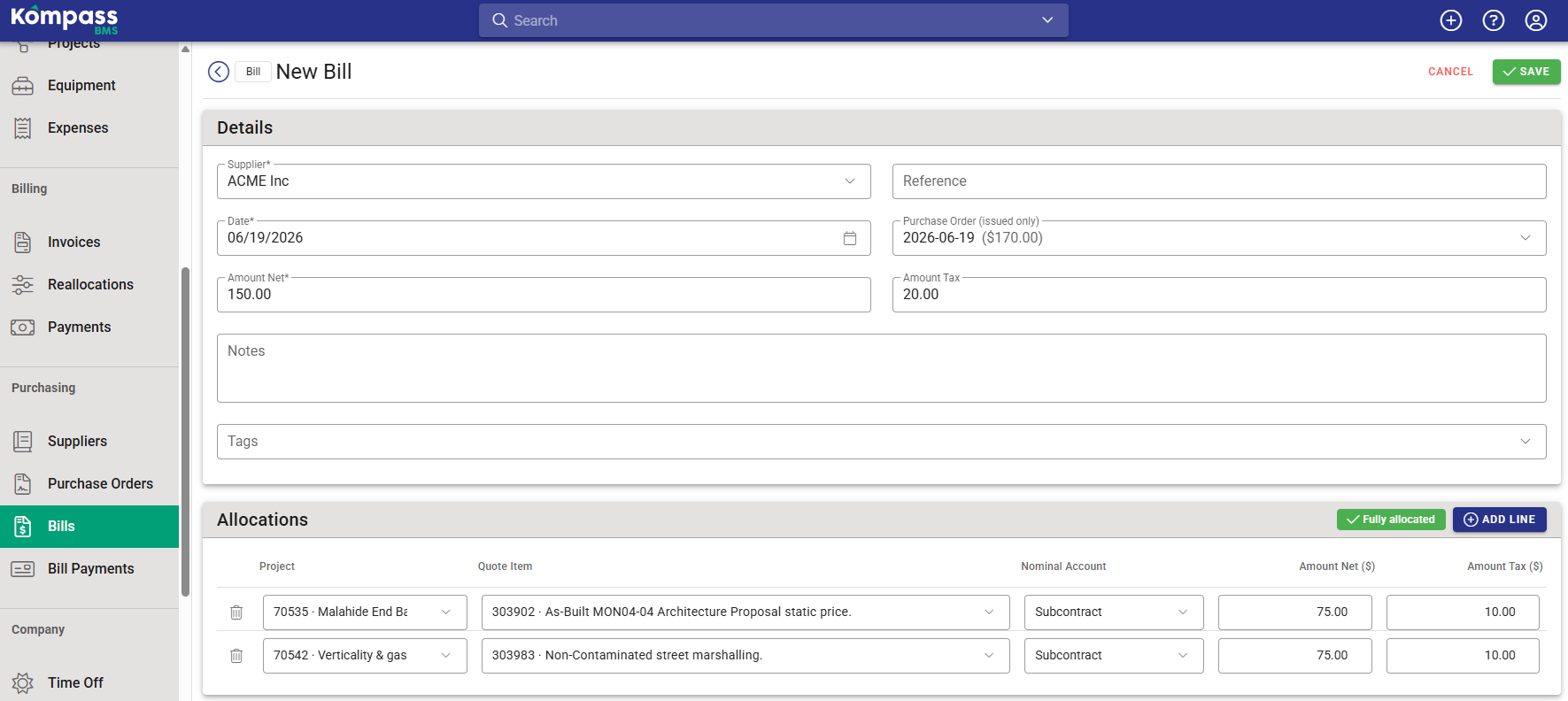
- Purchase Order: optional; link the bill to an existing Purchase Order from that supplier, or create a new one on the spot
- Amount Net and Amount Tax: the bill total
- Notes and Tags: optional
Tip: If you link a Bill to a Purchase Order that already has allocation lines, Kompass automatically copies those lines onto the Bill so you don't have to re-enter them. This only happens the first time you link the order, if the bill already has its own lines, they won't be overwritten.
Allocating a Bill to projects
Just like Purchase Orders, Bills have an Allocations section where each line is coded to a Project (via its Proposal Item) and a Nominal Account, with its own net and tax amount. The same allocation status banner (fully allocated / unallocated / overallocated) appears here too.
A bill with no allocation lines is still valid, it's simply recorded but not yet coded to any project. This is useful if you want to log the bill immediately and code it later.
Credit notes
To record a credit note or refund from a supplier, create a Bill with a negative amount. Kompass automatically recognises a negative bill as a credit note (you'll see it labelled "Credit Note" rather than "Bill" in your lists); there's no separate credit note record to create. The corresponding allocation line(s) should also be negative.
Note: When checking tax amounts, the rule is that tax can never exceed the net amount, comparing the size of each regardless of sign. So a credit note of -£100 net with -£20 tax is valid, but -£100 net with -£120 tax is not.
A note on VAT
Unlike client invoices where Kompass calculates tax for you from your configured rates, Bills don't use a tax rate selector. You simply enter the Amount Tax exactly as it appears on the supplier's bill. This is because supplier tax doesn't always follow a simple percentage of the net amount (rounding, mixed rates, reverse charges, etc.), so Kompass treats it as a value you transcribe rather than calculate.
Bill Payments
A Bill Payment records money you've actually paid to a supplier, and lets you specify exactly which bills, and which lines within those bills, the payment is settling.
Creating a Bill Payment
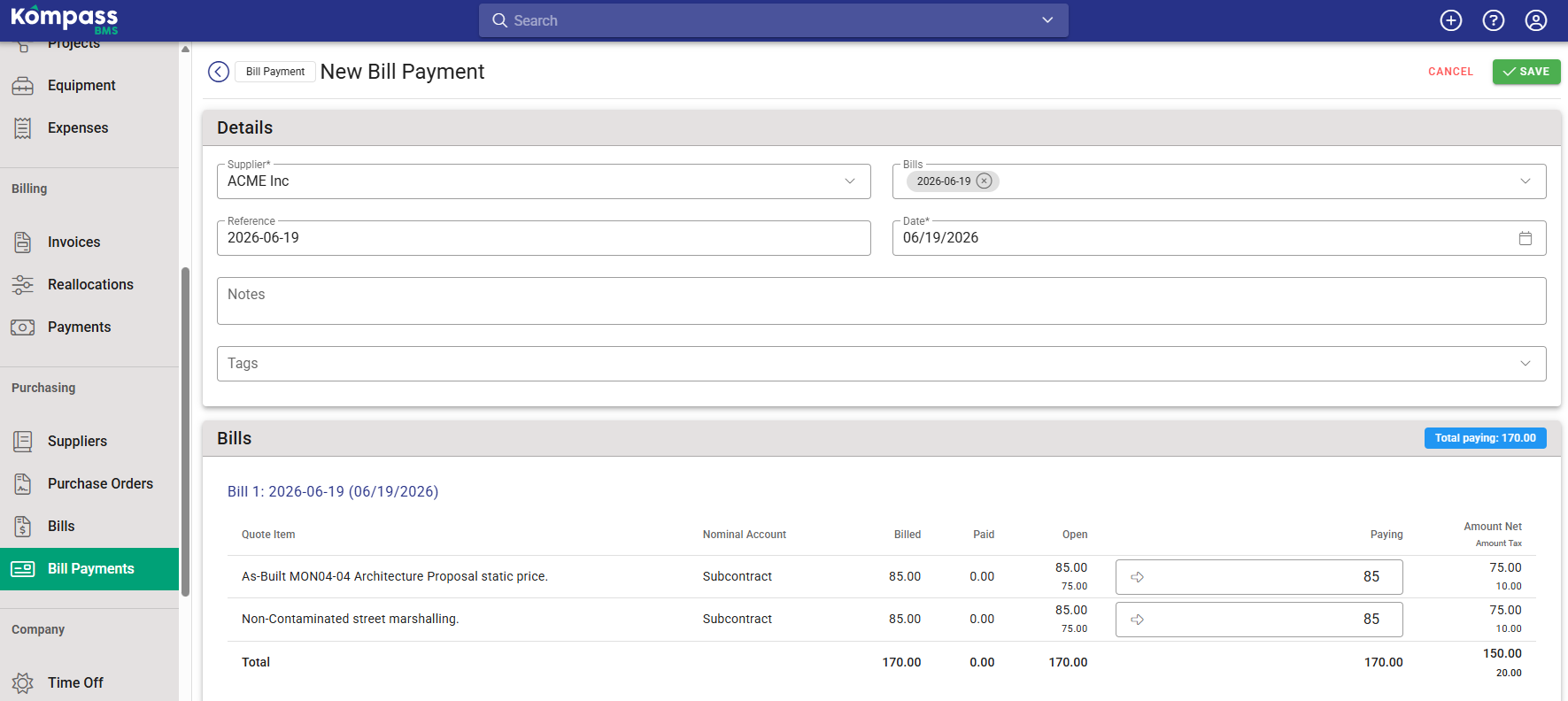
Go to Bill Payments and click Create. Choose the Supplier first; Kompass will show you their open (unpaid or partially paid) bills.
For each bill shown, you'll see a line-by-line breakdown:
| Column | What it shows |
|---|---|
| Billed | The original amount on that line |
| Paid | How much has already been paid against that line |
| Open | What's still outstanding on that line |
| Paying | How much of this payment you're applying to that line |
| Net / Tax | The net and tax split of the amount you're paying |
Enter how much you're paying against each line. You don't have to pay a bill in full, partial payments are supported, and the bill will simply show a smaller "Open" amount afterwards.
Overpayment warning
If the amount you're allocating to a bill exceeds what's actually open on it, Kompass shows an "Overpaid" warning next to that bill so you can catch the mistake before saving.
Linking a payment to a Purchase Order
Like Bills, a Bill Payment can optionally be linked to a Purchase Order, which will then show the payment on the order's detail page alongside any related bills.
How it all fits together
A typical flow looks like this:
- You raise a Purchase Order for £1,000 of materials and issue it to your supplier.
- The supplier delivers and sends you a Bill for £1,000, which you link to the Purchase Order, the allocation lines copy across automatically.
- You pay the supplier £600 now and the rest next month. You record a Bill Payment of £600, choosing how much of it applies to each line of the bill. The bill now shows £400 open.
- Next month, you record a second Bill Payment for the remaining £400. The bill is now fully paid.
At any point, you can open the Supplier, the Purchase Order, or the Bill and see the related records linked together, so nothing gets lost.
Where to find these
| Area | Navigation |
|---|---|
| Purchase Orders | Purchase Orders (top-level navigation) |
| Bills | Bills (top-level navigation) |
| Bill Payments | Bill Payments (top-level navigation) |
All three can also be reached from a Supplier's detail page, and Bills and Bill Payments linked to a specific order appear directly on that Purchase Order's detail page.