
Checking the integration sync log
For the integrations that support it, Kompass keeps a log of what each background sync did. The Sync runs page in Settings shows that log once each run has finished, so you can see when a sync last ran, what it created or updated, and which records it skipped or could not send. Use it when a record is missing from your accounting or CRM system, or when you want to confirm that a sync is still alive.
This page covers syncs that run in the background, such as the polls that bring records from Zoho CRM or payments from your accounting system into Kompass. For sending a single record to your integrations, see Syncing records to your integrations.
Open the Sync runs page
- Open Settings from your user menu.
- Choose Sync runs in the Settings list.
If you do not see Sync runs, your group does not have permission to view sync logs. See Who can do what below.
The page shows the runs of the organization you are working in.
Read the list of runs
Each row is one run of one integration, for example Zoho CRM syncing clients. The newest activity is at the top.
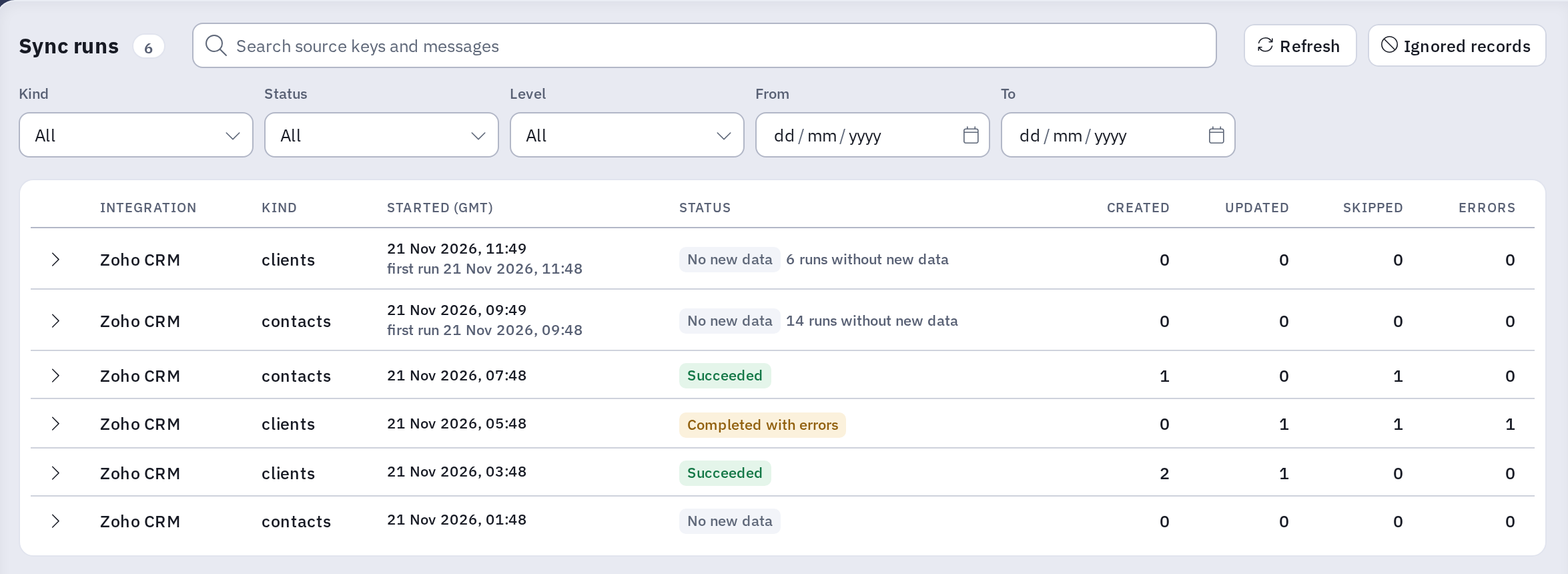
- Integration and Kind: which integration ran, and what it was syncing (for example clients or contacts).
- Started: when the run started. The time zone is shown in the column heading.
- Status: how the run went (see below).
- Created, Updated, Skipped and Errors: how many records the run created in Kompass, updated, skipped, or failed on.
Statuses
- Succeeded: the run finished and did some work, or recorded a record that was skipped.
- No new data: the run looked for changes and found nothing new.
- Completed with errors: the run finished, but at least one record failed.
- Failed: the whole run failed, for example because of an expired connection.
- Upstream unavailable: the other system was down or could not be reached. This is a problem on their side, not in Kompass.
- Enabled and Disabled: not runs, but entries that record when an integration was switched on or off for your organization. They have the kind Enabled/disabled.
Runs without new data
A sync can run every few minutes and usually finds nothing. Instead of filling the list with identical rows, Kompass combines consecutive idle runs into one row, such as 14 runs without new data. The time on that row is the latest run, and a second line, first run, shows when the idle stretch began. So this row also tells you the sync is still running: its latest time should be recent.
Repeated whole-run failures are combined the same way. A row that failed for the same reason several times in a row shows how many times, and the first occurrence's details.
Filter and search
Above the list you can filter by Kind, Status and Level, and by a From and To date. If several integrations have logged runs, an Integration filter appears as well. The search box looks through record keys and messages, so you can search for a record's ID to find every run that mentioned it. Refresh reloads the list.
Level is the severity of the individual items inside a run, from Debug up to Critical. Which levels a run stores depends on the sync log level of the integration, so a run may show only its skipped and failed records and not every created or updated one.
Open a run to see its records
Click a row to expand it. The records the run handled are listed with:
- Action: Created, Updated, Skipped or Failed.
- Level: the severity of the item.
- Source key: the ID of the record in the other system.
- Message: what happened, or why the record was skipped or failed.
- Payload: diagnostic data the integration stored about the record, such as the fields it received. The column is shown only to users with permission, and is filled in only when the integration's sync log level is set to Debug. Otherwise it shows a dash.
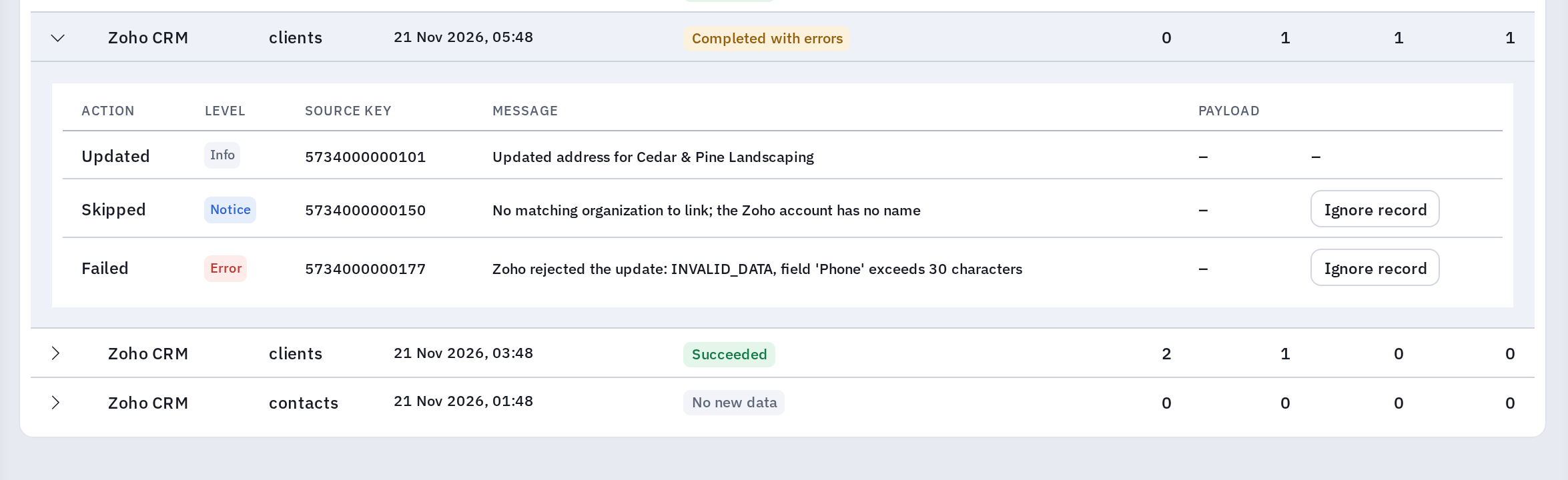
If a run's counts show created or updated records but no detail is listed, the integration's sync log level is above Info and does not store them. The page says so when this happens. A long run lists its first 200 records and tells you how many more there were.
Kompass keeps runs for 90 days after their latest activity, and Debug-level records within them for seven days. The Enabled and Disabled entries are kept for two years.
Ignore a record that keeps being skipped or failing
Some records can never sync. For example, a CRM account might have no name, so Kompass can never link it to an organization. The sync skips or fails on that record every time it runs, and the same entry keeps coming back and hides the runs that matter. You can tell Kompass to ignore that record.
- Open the run and find the skipped or failed record.
- Click Ignore record at the end of its row.
- Read the explanation and click Ignore record again to confirm.
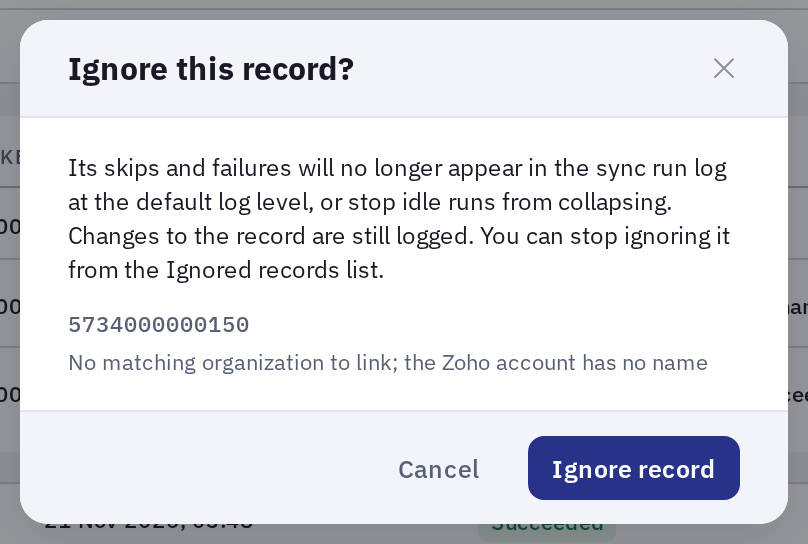
What happens next:
- The record's skips and failures are no longer shown at the default log level.
- They no longer stop idle runs from being combined into a runs without new data row, and a failure on an ignored record no longer turns a run into Completed with errors.
- Changes to the record are still logged. If the record is created or updated by the sync, that still appears.
- Ignoring does not make the record sync. It only changes what the log shows, and Kompass keeps trying the record as before. To fix the cause, correct the record in Kompass or in the other system.
Only a single skipped or failed record can be ignored. Created and updated records, summary lines such as "skipped 12 records", and items without a source key do not have the button. Ignoring applies to the integration and kind of that run (for example the Zoho CRM poll) in your organization.
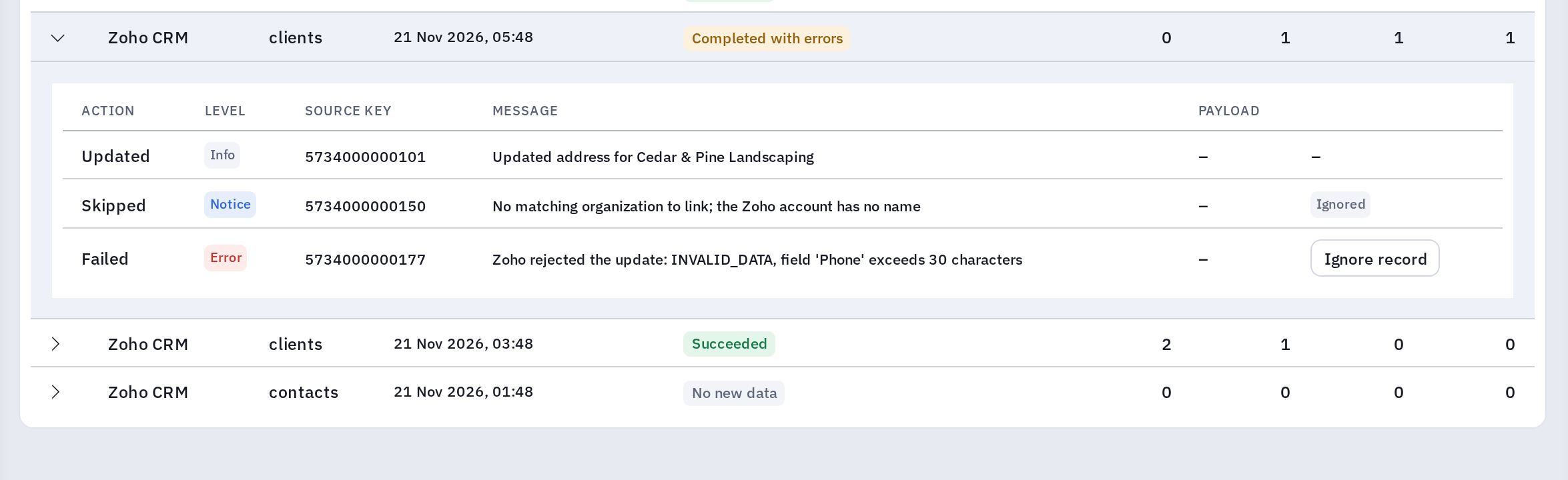
When you open a run again, an ignored record shows an Ignored badge in place of the button, if the run recorded it before you ignored it.
Stop ignoring a record
- Click Ignored records at the top of the Sync runs page. The list follows the page's Integration and Kind filters, so clear them first if the record does not appear.
- Find the record in the list, which shows the integration, kind, source key, message, who ignored it and when.
- Click Stop ignoring.
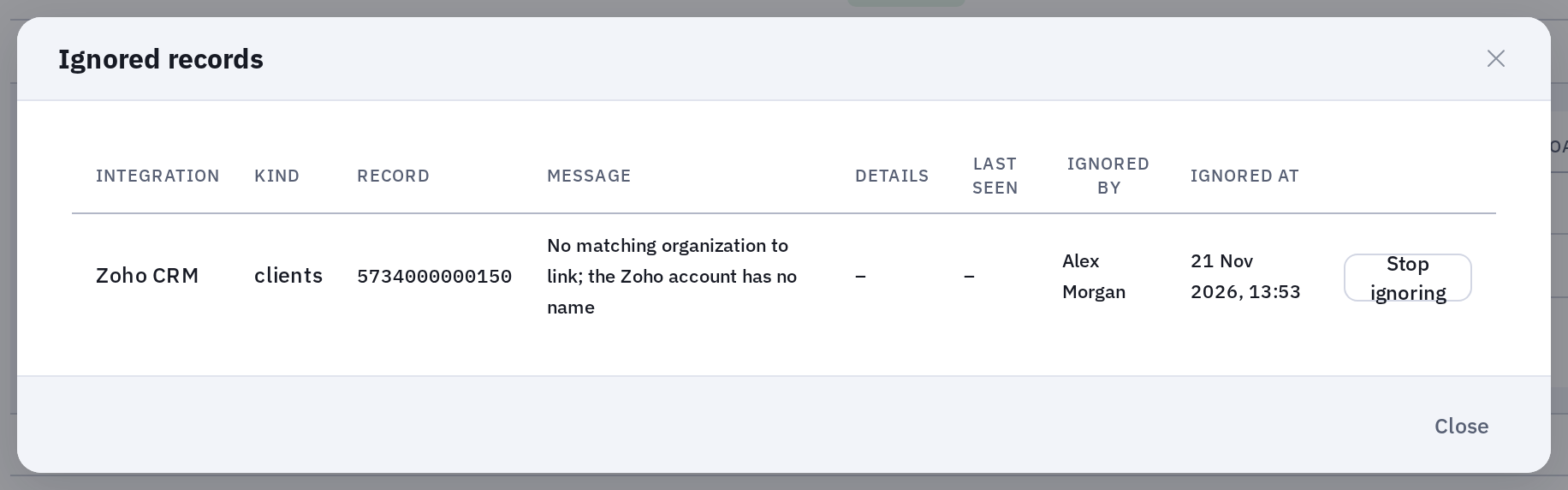
From the next sync on, the record's skips and failures are logged as normal again, at the integration's sync log level. While a record is ignored, Last seen shows when a sync last skipped it or failed on it, updated at most once an hour.
Who can do what
All of this is controlled from the Sync logs permission in the Administration area when you change the group's permissions:
- View: can open the Sync runs page and read runs and their records.
- Manage: everything in View, plus the Ignored records list, ignoring a record and stopping ignoring one.
- Sync log payloads: a separate permission that also shows the Payload column, the raw data from the other system. It can contain personal details, so give it only where needed. It needs View as well.