
QuickBooks Online
Kompass syncs Clients, Projects (optionally as sub-customers), and Invoices to QuickBooks Online (QBO) via the Intuit REST API. Before any of that works, a QBO Configuration record must be created and linked to your QBO company through an OAuth authorisation flow. This is a one-off setup task for a Kompass Admin with access to the Admin site.
Prerequisites
-
Your Kompass user must have access to the Kompass Admin site (
/admin/).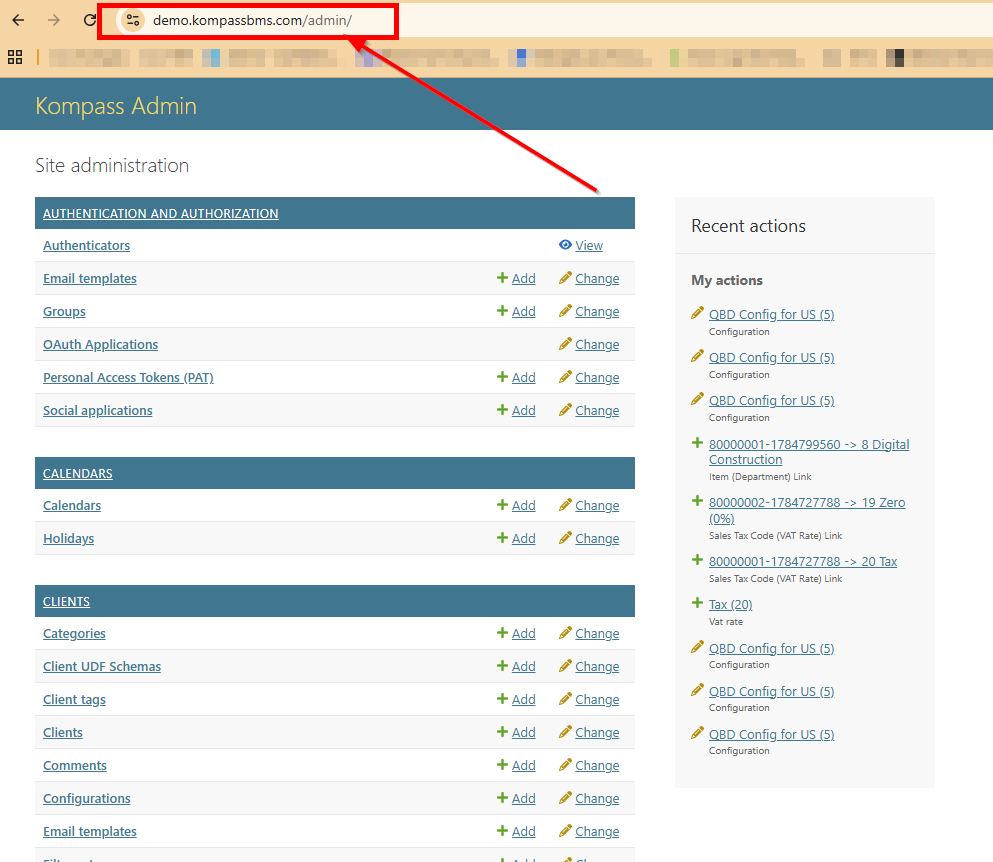
- Your Kompass user must have permissions on the Quickbooks Online models (Configuration, Customer, Project, Invoice, Item Service, Class, Tax Code VAT Rate, Custom Field). If the Quickbooks Online section does not appear in the Kompass Admin sidebar, contact Kompass support to have the permissions added to your group.
- You must be an admin on the QuickBooks Online company you intend to connect, with permission to authorise connected apps.
Step 1: Create the Configuration
-
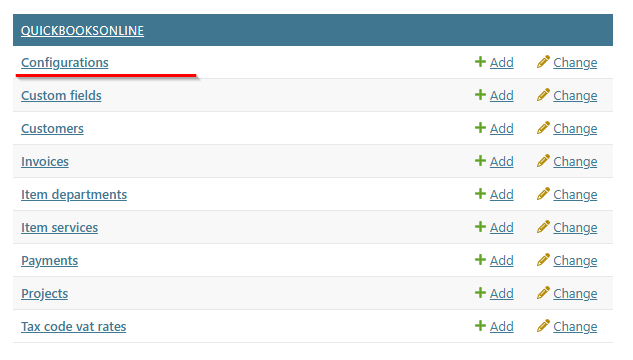
In the Kompass Admin, go to Quickbooks Online → Configurations.
-
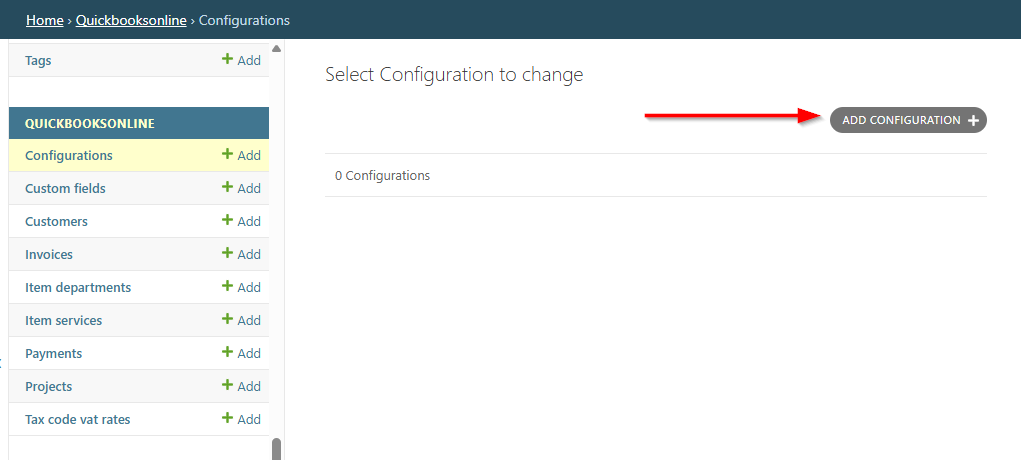
Click Add Configuration.
- Select the Org this configuration belongs to. Each Kompass org has exactly one QBO Configuration.
- Leave Enable unticked for now. You will tick it once the OAuth link is in place.
- Set the remaining fields as needed:
- Notification recipients: set this to your own email address so you receive sync error notifications. Add more addresses as needed.
- Project customers: tick this. Recommended. It creates a QBO sub-customer (Job) under the billing client for each Kompass Project, giving you project-level visibility in QBO.
- DocNumber Template, Project/Sub-customer DisplayName Template, Client DisplayName Template: templates controlling how Kompass records appear in QBO. The defaults work for most customers.
- Locale: USA, EU, or Canada. This affects whether per-line tax codes are sent; the USA does not use them.
-
Sync modules: leave this as it comes, Clients and Projects. You pick the full set in Step 3, once QBO is linked. Invoices cannot be ticked yet: it requires a Default Item ID, and that dropdown only populates after linking.
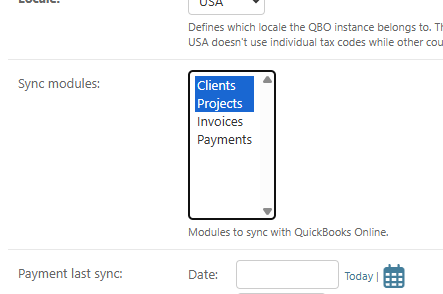
- Leave Default Item ID and Default Class ID blank for now: their dropdowns only populate after the QBO link is in place. You will set them in Step 3.
- Click Save.
Step 2: Link the Configuration to QuickBooks Online
Linking exchanges an Intuit authorisation for a long-lived refresh token that Kompass stores against the Configuration.
- From the Configurations list, tick the Configuration you just created.
-
In the Action dropdown, select Authorize with QuickbooksOnline and click Go.
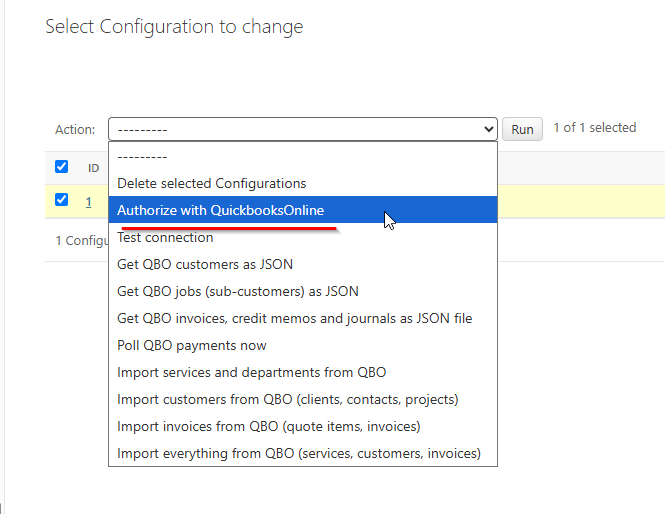
- You will be redirected to Intuit's sign-in page. Sign in with the QuickBooks Online admin account for the target company.
- Select the company you want Kompass to connect to and click Connect to approve the Accounting scope.
- Intuit redirects you back to Kompass. The callback populates Company id and Refresh token on the Configuration automatically, so no copy-paste is required.
If the redirect fails or you are returned to an error page, the most common cause is signing in as a user who is not a QBO admin on the target company. Start the action again.
Step 3: Set defaults, enable, and test
- Open the Configuration record and confirm that Company id and Refresh token are now populated (they will no longer show the
<will be extracted...>placeholders). - Now that QBO is linked, set the fields that depend on it:
- Default Item ID: select a QBO Product/Service from the dropdown. This is used on invoice lines whose Kompass Service has no specific Service-to-Item mapping.
- Default Class ID: only needed if your QBO company uses Classes. Select a fallback Class from the dropdown.
- Sync modules: now choose the modules you want to sync. Clients, Projects, and Invoices is the usual selection. Projects and Invoices both require Clients, and Invoices requires the Default Item ID you have just set.
- Tick Enable and click Save.
- Back on the Configurations list, tick the record, select Test connection from the Action dropdown, and click Go. A success message confirms that Kompass can authenticate against QBO and fetch company info.
If the test fails with a token error, re-run Authorize with QuickbooksOnline. Intuit issues a new refresh token each time and Kompass stores it automatically.
Step 4: Post-link mappings (optional)
Once linked, a handful of mapping tables under Quickbooks Online control how Kompass data appears in QBO. None are strictly required for a first sync (the Config-level defaults fill the gaps), but most customers configure at least Item Services:
- Item Services: map each Kompass Service to a QBO Item (Product/Service). Invoice lines use the mapping; unmapped lines fall back to the Configuration's Default Item ID. You can also set a Class directly on an Item Service, which takes precedence over the Department-based Class mapping below.
- Classes: only relevant if your QBO company uses Classes. Map Kompass Departments to QBO Classes here if you want every Service in that Department to default to the same Class. For per-Service overrides, set the Class on the Item Service instead. The Configuration's Default Class ID is the final fallback when neither is set.
- Tax Code VAT Rates: map Kompass VAT rates to QBO tax codes. Required for EU and Canada locales; not used in the USA.
- Custom Fields: templates for QBO invoice custom fields.
- Customers: manual link records between Kompass Clients and existing QBO Customers. Usually not needed: Kompass creates QBO Customers automatically the first time a Client syncs.
How the sync runs after setup
Sync is push-only, Kompass to QBO. Clients sync when they change in Kompass; Projects sync as sub-customers if Project customers is enabled; Invoices sync once they reach the Approved, Posted, or Voided state. There is no manual "sync now" button: changes propagate in the background.
Troubleshooting actions
The Configurations list has three further actions for diagnostics:
- Get QBO customers as JSON: dumps the QBO Customer list as JSON, useful for matching existing QBO records to Kompass Clients.
- Get QBO jobs (sub-customers) as JSON: same, for sub-customers.
- Get QBO invoices as JSON: same, for invoices.
Sync errors are emailed to the addresses listed in Notification recipients. If the refresh token is ever invalidated (for example, if someone disconnects Kompass from inside QBO), re-run Authorize with QuickbooksOnline to restore the link.