
Parent and Child Organizations
Some clients are made up of several organizations: a group with regional offices, a holding company with subsidiaries, or a public body with separate departments. Kompass lets you record each one as its own organization and link it to the organization above it, so you can see the whole group together on the Organizations list.
Setting it up
Open the organization that belongs to another one, click Edit, and choose the organization above it in the Parent Organization field, then click Save. To detach it again, clear the field and save.
- An organization can have any number of child organizations.
- A child organization can have children of its own, at any depth: a group, its regional offices, and the branches under each office.
- Each organization keeps its own contacts, proposals, projects and invoices. Linking organizations does not move or combine any of their records.
For the other fields on the form, see Create a new organization and Edit an existing organization.
Viewing the group in the list
The Organizations list can show linked organizations in two ways. To switch, click the list button next to the filters at the top of the list, and choose Tree view or Flat list.
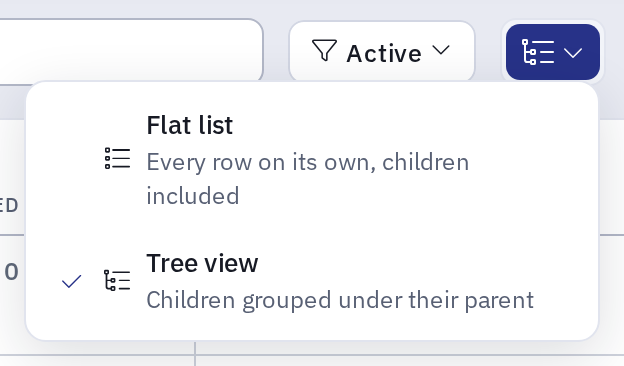
- Tree view (the default) shows each child organization directly under its parent and indented, one step for each level up to the fourth.
- Flat list shows every organization on its own row, in the list's sort order. A child organization shows a chip that links to its parent.
Kompass remembers your choice in this browser, separately for each Org. It is not part of a saved filter.
Tree view
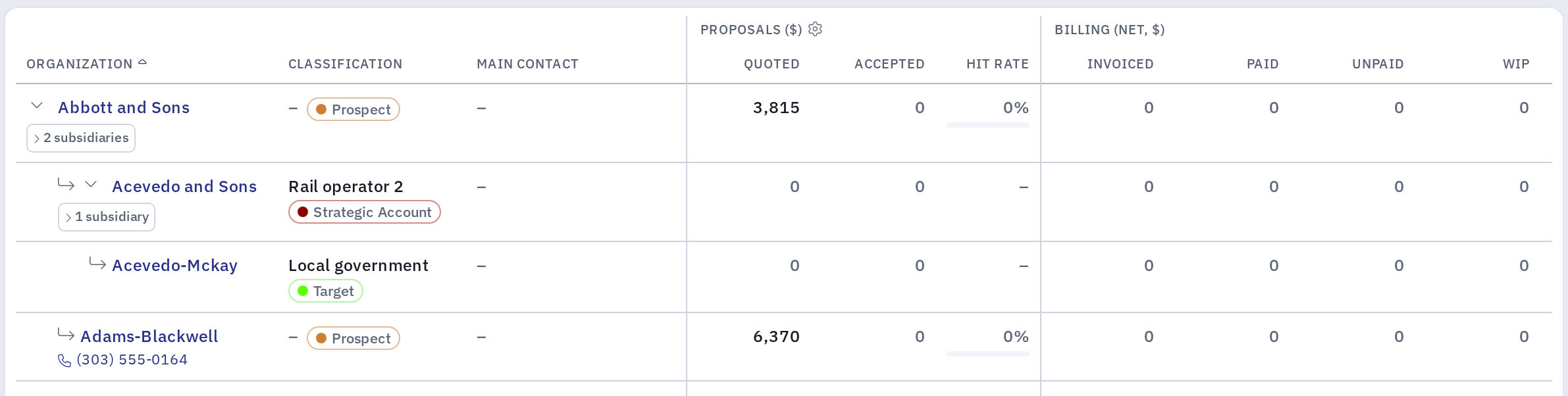
- A parent shows a chip with the number of organizations directly under it, for example 2 subsidiaries.
- Collapse or expand a parent with the arrow in front of its name. Collapsing a parent hides every level below it. Kompass remembers which parents you collapsed.
- A parent and the organizations under it stay on the same page. Only the top-level rows count toward the page size and the number of organizations shown, so a page can hold more rows than the page size.
- Each row shows that organization's own figures. The list does not add up a group's figures.
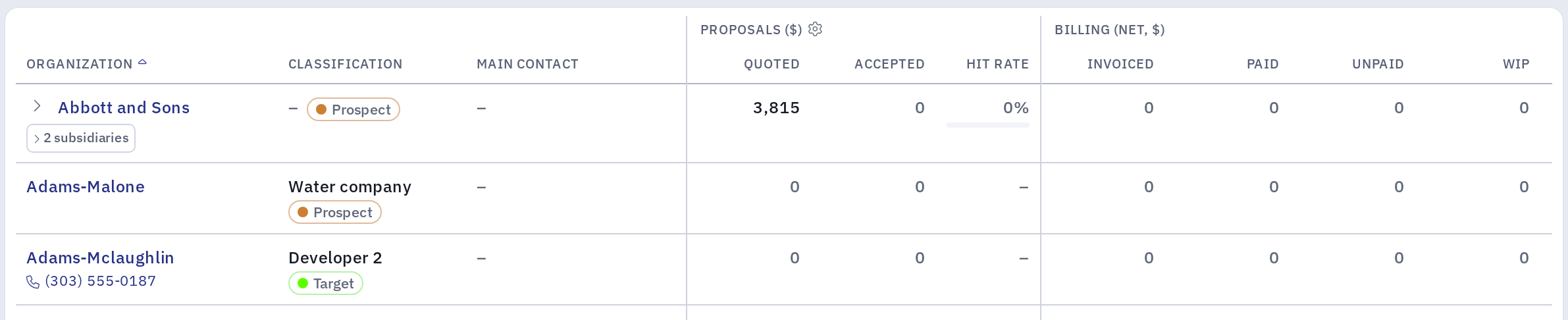
- Filters and search apply to every row. A child organization that matches when its parent does not appears on its own row, with a chip linking to its parent. Starting or changing a search expands every parent, so you can see the matching organizations. If you collapse a parent during a search, that only lasts until you clear the search; your saved collapsed parents then come back.
Tip: projects can be grouped in the same way. See Parent and Child Projects.