
Use the diary timer
The timer records your time like a punch card: start it when you begin work and stop it when you finish, and Kompass creates the diary entry with your start and end times. If your organisation has turned on location recording, the timer also records where you were while it ran.
Note: Kompass form field labels can be customised for different Kompass instances. Some fields may be named differently in your version of Kompass, or may not be there at all.
Find the timer
On a phone, the timer button sits in the top bar on every page, next to the search button.
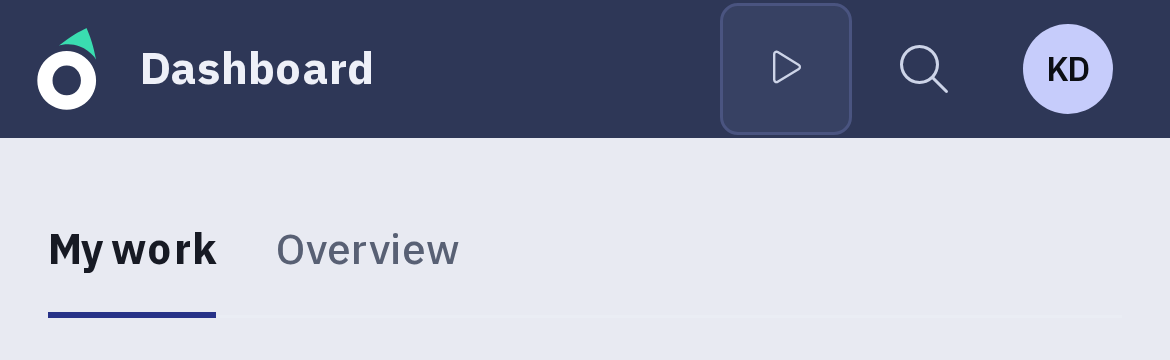
On a computer, the timer button is next to Diary in the navigation, and the Diary page has a Timer button above the list of entries.
While a timer is running, the button shows a clock with a small pulsing dot, so you can see at a glance that you are clocked in.
You can have one running timer at a time. It is saved in Kompass, so a timer started on your phone shows as running when you sign in on a computer, and the other way round.
Start the timer
- Click the timer button.
- Select the Project and Task you are working on and, if you like, enter the Details. You can also leave these until you stop the timer.
- Click Start.
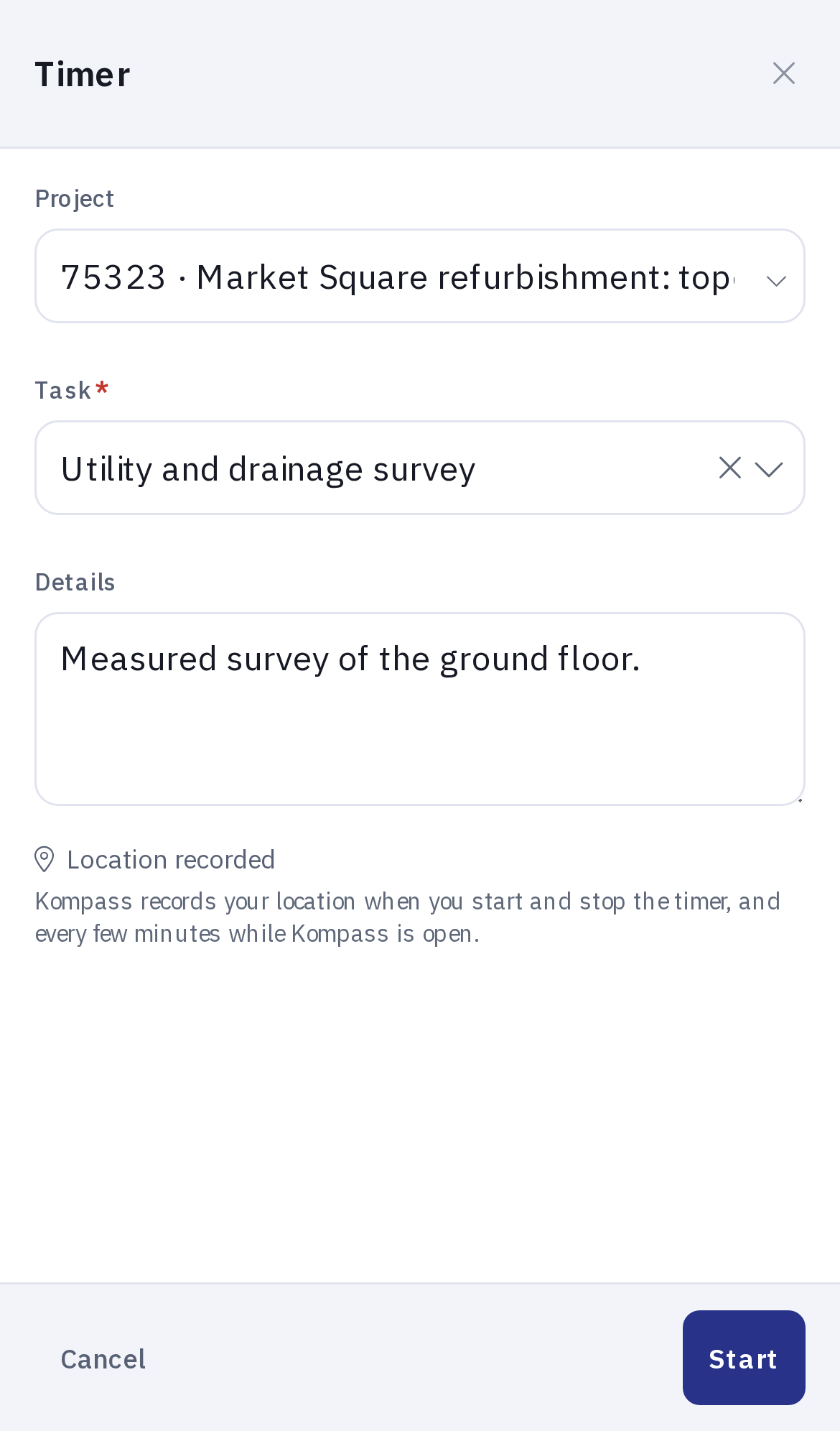
The timer starts at the moment you click Start, not when you opened it.
Stop the timer
- Click the timer button. The timer shows how long it has been running.
- Complete the Project, Task and Details.
- Click Stop & Save.
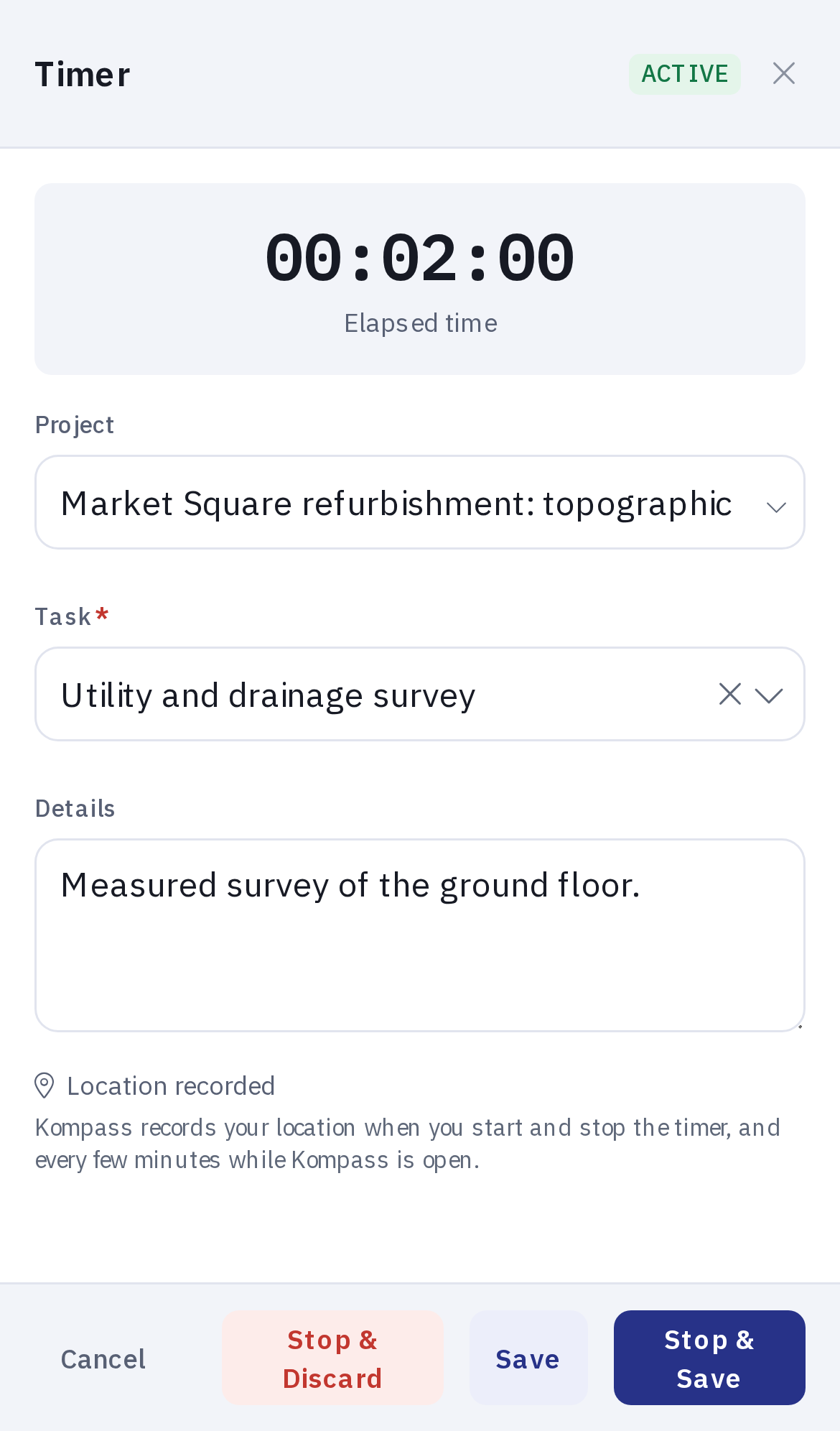
Kompass saves the diary entry with the time you started the timer and the time you opened it to stop it, and the entry appears in your diary like any other. If the details are missing or too short, it is saved as a draft for you to complete.
The other buttons on a running timer:
- Save keeps the timer running and saves any changes you made, for example the task or the details.
- Stop & Discard stops the timer and deletes it. No diary entry is created.
- Cancel closes the timer without changing anything. It keeps running.
Location recording
If your organisation has turned on location recording, the timer records your location:
- when you start, save or stop the timer: Kompass takes a reading when you open the timer, and saves it when you click Start, Save or Stop & Save. If you click Cancel, the reading is not kept.
- every five minutes while the timer is running and Kompass is open on your screen.
Kompass cannot take readings while it is not on screen: when you switch to another app or browser tab, lock your phone or close Kompass.
Each recording holds your position, how accurate it is and the time it was taken. The locations are saved with the diary entry and are included in the diary export.
The timer shows whether your location was recorded:

- Location recorded: your location was recorded.
- Location access is blocked: your browser or phone does not allow Kompass to see your location. The timer still works.
- Location unavailable: your device could not find your location, for example indoors. The timer still works.
Allow location access
The first time you open the timer, your browser asks whether Kompass may use your location. Choose Allow. If you chose Block by mistake, change it in your browser's site settings for Kompass, or on a phone in the settings for your browser.
Using more than one device
The locations recorded every five minutes are kept on the device that recorded them and are sent to Kompass the next time you save or stop the timer there. If you start the timer on your phone and stop it on a computer, the locations your phone recorded since you last saved there are not included. Saving the timer on your phone before you switch devices sends them.
Turn location recording on or off
Location recording is set for the whole organisation, and only administrators can change it.
- Open the Kompass Admin and go to Diary → Configurations.
- Open your organisation's configuration.
- Tick or untick Location Tracking in Timer.
- Click Save.
Staff see the change the next time they load Kompass.