
Signing in to Kompass
Overview
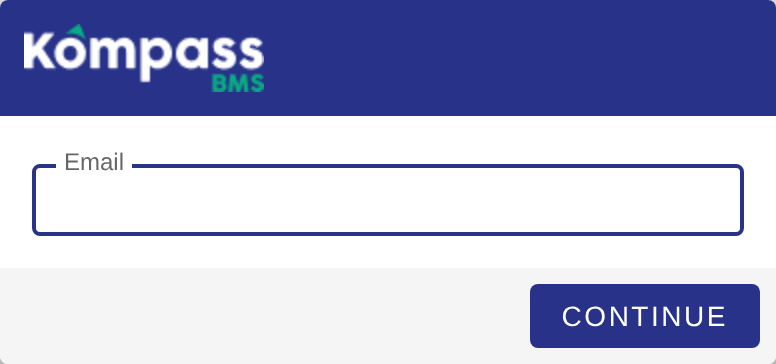
The Kompass login page asks for your email address first. Kompass then sends you to the right place to sign in: your organisation's Microsoft sign-in if it uses one for your email domain, or the password step otherwise.
Signing in with a password
- Go to the Kompass login page, enter your email address and click Continue.
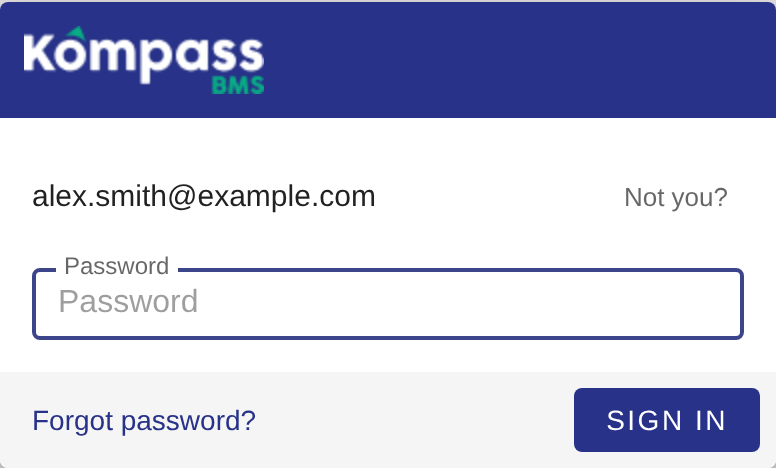
- Enter your password and click Sign in.
- If multi-factor authentication (MFA) is set up for your account, enter your authenticator code when asked. See Multi-factor authentication (MFA).
After a successful password sign-in, your browser remembers your email address for 30 days, so next time the login page opens straight on the password step (or, where your email domain uses Microsoft sign-in, with your address already filled in). If someone else is signing in on the same computer, click Not you? to clear it and start again with the email step.
If you have forgotten your password, click Forgot password? on the password step. See Resetting your password or MFA.
Signing in with Microsoft
If your organisation signs in to Kompass with Microsoft, enter your work email address and click Continue. Kompass sends you to Microsoft, which shows its usual sign-in page or account picker. Choose your work account. Once Microsoft has signed you in, you are back in Kompass.
Your login page may also show a Sign in with Microsoft button below the email field. It does the same thing.
If you had a Kompass password before your organisation moved to Microsoft sign-in, sign in with Microsoft from now on: your existing Kompass account is used, with all its data. If your administrator has asked you to keep using a password, they will give you a separate sign-in address for it.
Your password, MFA and account lock-outs for Microsoft sign-in are managed by your organisation in Microsoft, not in Kompass. If Microsoft sign-in does not work for you, contact your own IT administrator first.
Messages you may see
- Password sign-in is not available for this account. Please sign in with single sign-on. Your organisation requires Microsoft sign-in for your email domain. Go back to the email step and click Continue to sign in with Microsoft.
- Sign-in was refused. Please contact your administrator. Microsoft signed you in with an account Kompass cannot accept, for example one from a different organisation's Microsoft directory than the one your email domain belongs to. Check you chose your work account in the Microsoft account picker.
- The domain '...' is not permitted for login. Please use your company email. The Microsoft account you chose has an email address on a domain your organisation has not set up for Kompass.
Related articles
- Microsoft single sign-on (for administrators)
- Resetting your password or MFA
- Multi-factor authentication (MFA)