
Sales Orders
Overview
A Sales Order records a client's purchase authorisation, the order a client places with you, usually in the form of their own Purchase Order (PO) number. It sits on the billing side of Kompass, alongside Invoices, Reallocations, and Payments, and it represents money your client has committed to spending with you.
As you raise invoices against a Sales Order, Kompass tracks how much of the authorised value has been drawn down and how much remains, so you always know whether you still have room to invoice under a given client PO, or whether you've reached its limit.
Sales Orders connect directly to three other areas of Kompass:
- Projects: every Sales Order belongs to exactly one project.
- Proposal Items: a Sales Order can be allocated across the proposal items it covers.
- Invoices: invoices name a Sales Order, and that's what draws it down.
You'll find Sales Orders under the Billing group in the main navigation.
⚠️ Important: Sales Orders are not the same as the "Order Confirmation" field on a project
On a project's overview, in the Proposal section, there is an Order Confirmation field (with accompanying confirmation details). This is a single, free-text field that has existed for a long time, and it is separate from the new Sales Orders dataset.
The two are not connected:
- Order Confirmation is one field on the project. At present, it is the value that appears on raised invoice documents.
- Sales Orders are a separate, structured dataset. You can have many of them per project, each with its own authorised value, allocations, and drawdown tracking.At the current stage, if you need a client PO reference to appear on the invoice document itself, that comes from the project's Order Confirmation field rather than from the Sales Order named on the invoice. Sales Orders track and control the authorisation and drawdown, while the Order Confirmation field drives what prints on the invoice. This may evolve in future, so for now keep both in mind when setting up a project to ensure the right information appears in the right place.
How Sales Orders relate to a client's PO
When a client sends you a Purchase Order, that PO becomes one or more Sales Orders in Kompass. The client's own PO number is stored on the Sales Order as the Client Reference, which also becomes the Sales Order's name.
Here's an important detail: a single client PO can become several Sales Orders. Because each Sales Order belongs to exactly one project, if your client issues one PO that covers work across three projects, you would create three Sales Orders, one per project, all sharing the same Client Reference.
This means the Client Reference is deliberately not unique: you can have several Sales Orders with the same client PO number, and Kompass groups them so you can see everything authorised under that one PO.
Creating a Sales Order
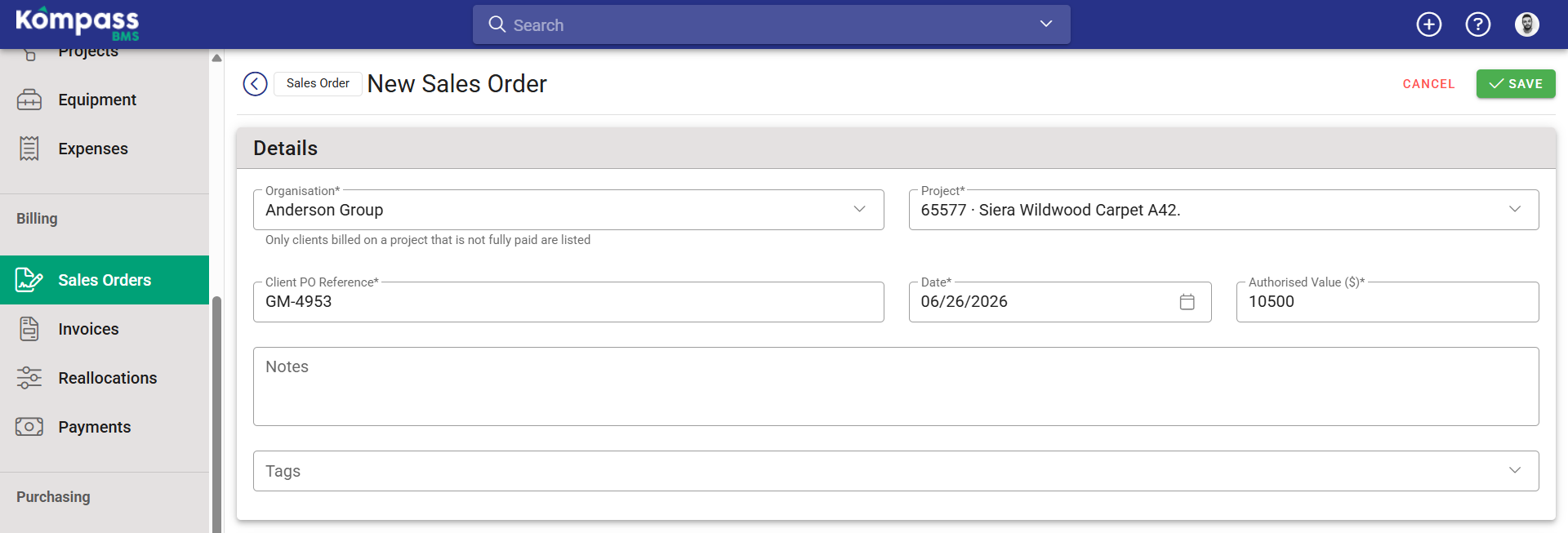
From the Sales Orders list, click Create Sales Order. The form asks for:
- Client: the client who issued the authorisation (required). Choose this first.
- Project: the project this Sales Order belongs to (required). The project list is limited to projects billed to the chosen client that aren't yet fully paid, so you must pick the client before the project becomes available.
- Client Reference: the client's own PO number (required). This also becomes the Sales Order's name.
- Date: the order date (required).
- Amount Net: the authorised value, net of tax. Sales Orders carry a net value only; there is no tax on the header.
- Notes and Tags: optional.
Once saved, the Sales Order is Live and available to be named on invoices for that project.
Tip: You can also start a Sales Order directly from a project. When you do, Kompass pre-fills the project and works out the client for you.
Allocating a Sales Order to Proposal Items (optional)
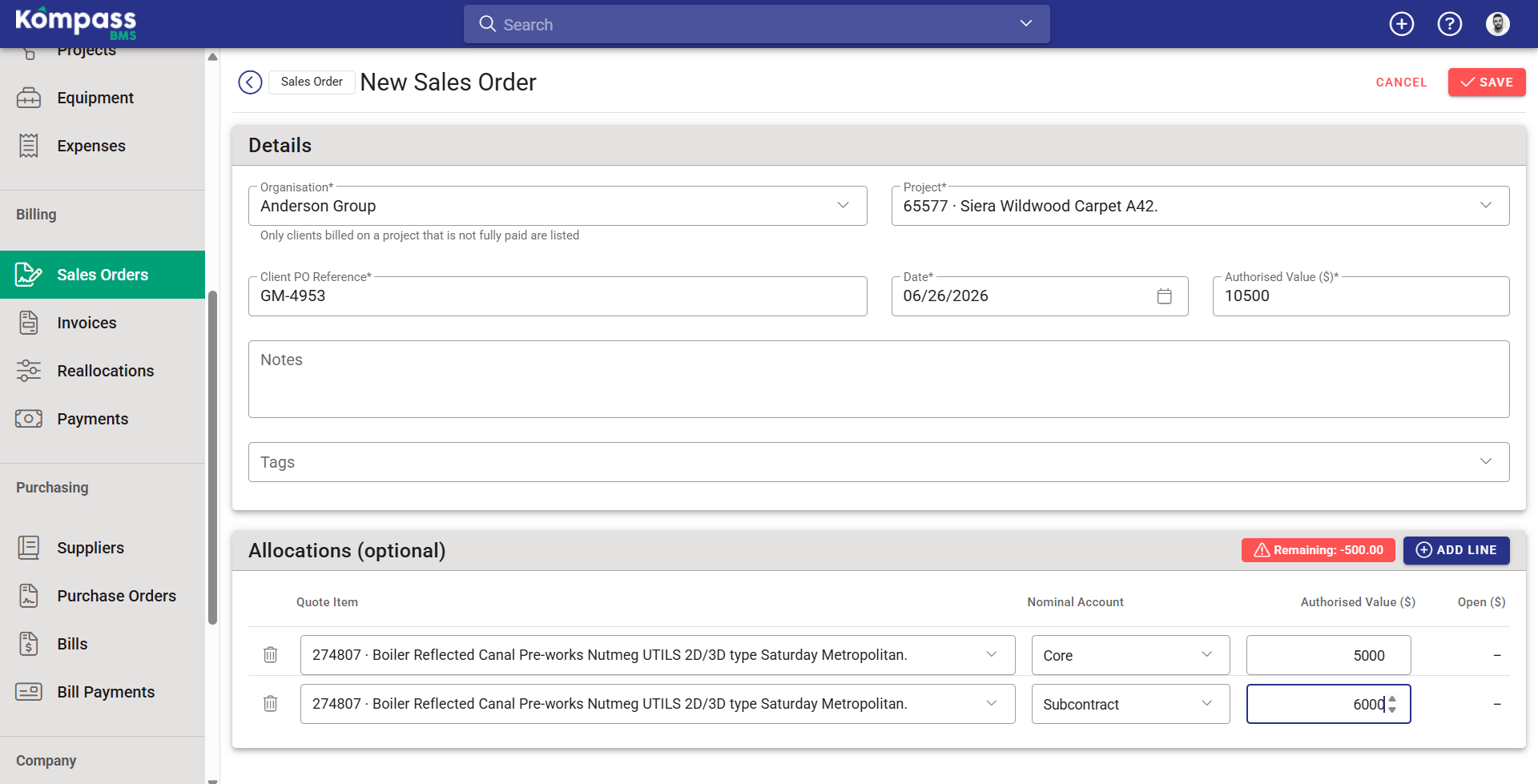
Below the order details is the Allocations section, where you can split the authorised value across the Proposal Items it covers. Allocations are optional. A Sales Order with no allocation lines is perfectly valid, and simply records the authorisation without coding it to specific proposal items. You can always add them later.
Each allocation line ties a portion of the value to:
- a Proposal Item (only accepted proposal items on the order's project can be selected), and
- a Nominal Account, with its own Net amount.
You can split one Proposal Item across more than one Nominal Account; each unique combination of Proposal Item and Nominal Account is its own line.
The allocation banner at the top of this section shows the Amount Remaining - the authorised value not yet allocated - and changes colour to tell you where you stand:
| Banner | Meaning |
|---|---|
| Green (with a tick) | Fully allocated, the lines add up exactly to the authorised value |
| Amber | There's still authorised value left to allocate |
| Red (with a warning icon) | Over-allocated, the lines exceed the authorised value. You can't save until this is corrected |
When you add a new line, Kompass helpfully seeds it with whatever value is still unallocated, so a single line fills the order automatically.
How drawdown works
This is the heart of the Sales Order feature. Drawdown is driven by invoices, not by the Sales Order itself.
When you raise an invoice and name a Sales Order on it, the net value of that invoice's allocations is counted against the Sales Order's authorised value:
Remaining = Authorised value − Net invoiced against it
A few important rules about how this is calculated:
- Only invoices that "count as value" draw it down. An invoice reduces the available authorisation once it reaches the status your organisation treats as value (by default, Approved). A draft or submitted invoice doesn't draw down the Sales Order yet.
- Credit notes restore authorisation. Because drawdown is net-based, a credit note (negative net) increases the remaining value again. Credit an invoice that drew down a Sales Order, and that headroom comes back.
- Journals have no effect. A journal has a net value of zero, so it neither draws down nor restores a Sales Order. (For more on journals, see the article on Reallocations.)
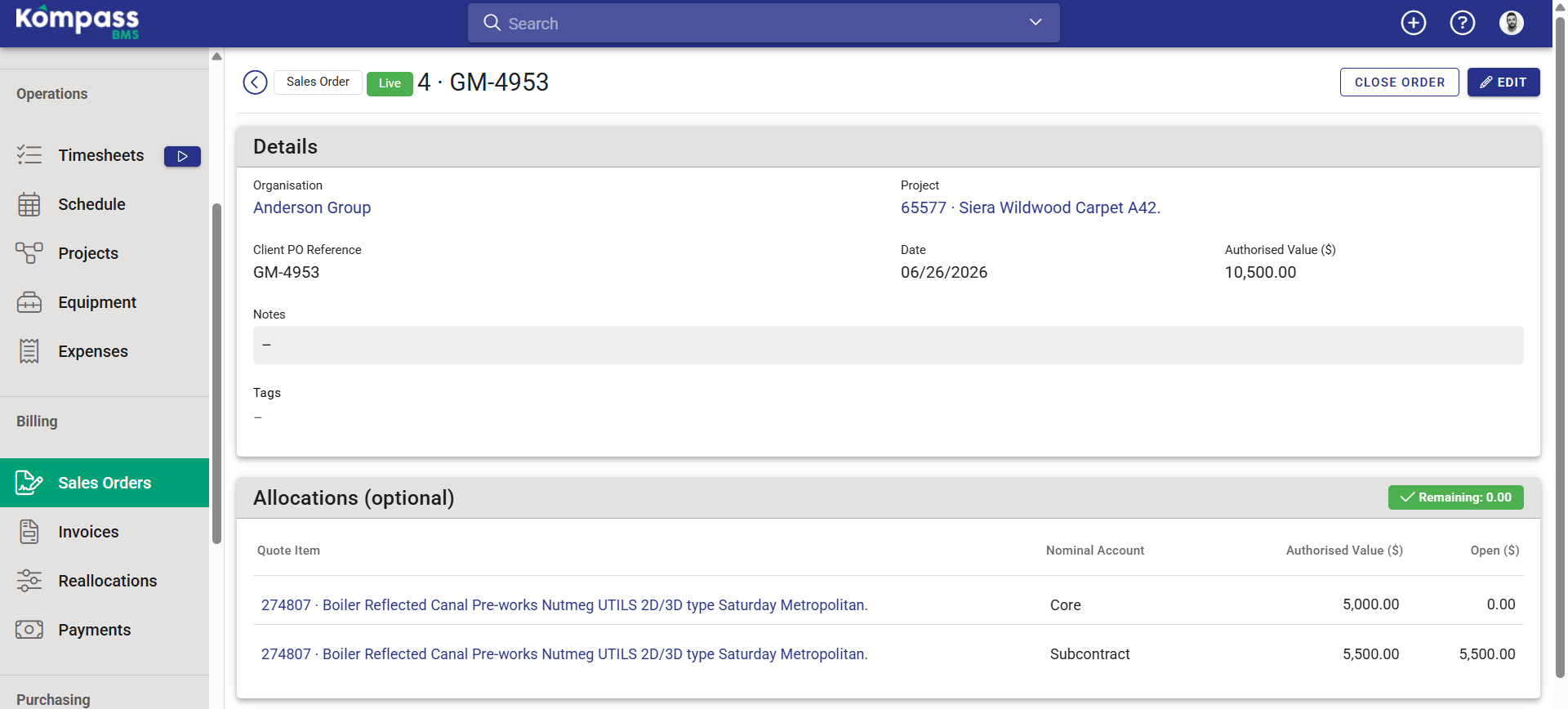
On each line of the allocation table, the Open column shows the allocated net minus what's already been invoiced against that proposal item, so you can see drawdown at the line level, not just the header.
Drawdown warnings on invoices
When you invoice against a Sales Order, Kompass warns you as you approach or exceed the authorised value:
| Warning | When it appears |
|---|---|
| Near full (amber) | You've reached 90% of the authorised value |
| Over cap (red) | Your invoicing has exceeded the authorised value |
These prompts help you catch a situation where you're about to over-invoice against what the client actually authorised, so you can check with them before going further.
Naming a Sales Order on an invoice
When you create an invoice for a project that has Sales Orders, you can select the relevant Sales Order on the invoice. This links the invoice to the client's authorisation and triggers the drawdown. Only Live (non-closed) Sales Orders are selectable on new invoices.
The Sales Order's own detail page lists every invoice that has drawn it down, so you can see the full picture of how an authorisation has been consumed.
Related article: For how to raise an invoice, see Create an invoice and review its valuation.
The Sales Orders list
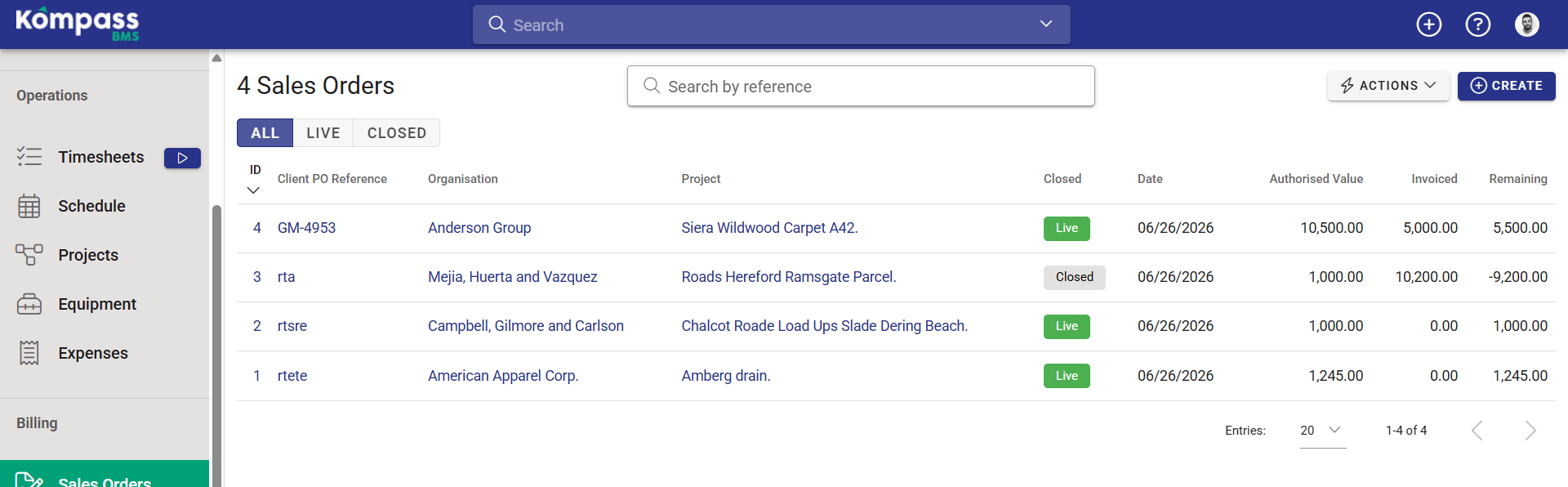
The list shows all your Sales Orders with columns for ID, Client Reference, Client, Project, Status, Date, Amount Net (authorised), Amount Invoiced (drawn down), and Amount Remaining.
At the top, a toggle lets you filter between All, Live, and Closed orders. You can also search by Client Reference.
From the list's actions menu you can Export and Import both Sales Orders and their allocations (subject to permissions).
Closing and reopening a Sales Order
A Sales Order is Live until you explicitly close it. You'd typically close one when the client has superseded their PO, when the work is complete, or when you no longer expect to invoice against it.
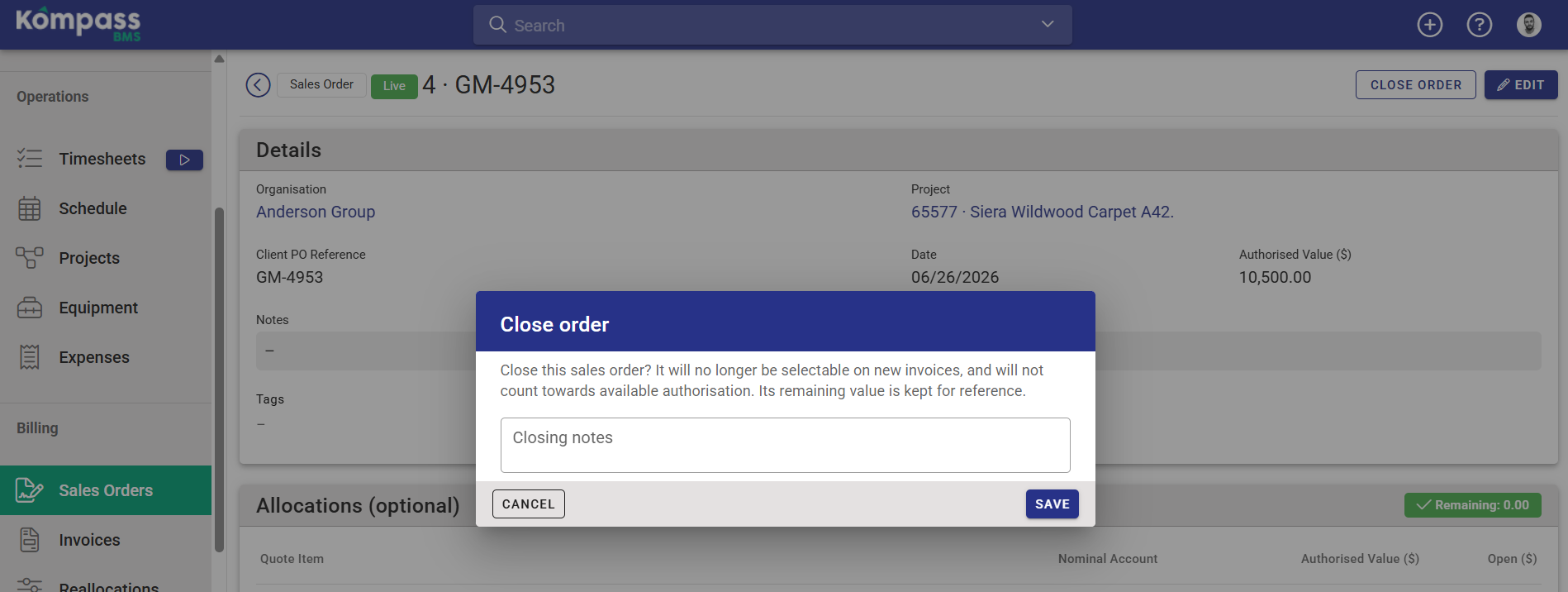
To close one, open the Sales Order and click Close Order. A dialog lets you record a closed note explaining why. Kompass logs who closed it and when, and displays this on the order.
When a Sales Order is closed:
- It contributes zero to available authorisation. Its remaining value is shown as informational only and no longer counts as room to invoice.
- It is no longer selectable on new invoices.
- Its authorised value is preserved, not amended down. Closing keeps the historical record honest rather than rewriting the original authorisation.
If you close one by mistake, open it and click Reopen Order to make it live again.
Permissions
Sales Orders use the standard view / add / change / delete permissions, plus three dedicated ones:
| Permission | What it controls |
|---|---|
| Close sales orders | Closing and reopening Sales Orders |
| Export sales orders | Exporting the Sales Orders and allocations lists |
| Import sales orders | Importing Sales Orders and allocations from a spreadsheet |
As with all financial data in Kompass, viewing Sales Order values may also depend on the relevant financial-visibility permissions on the parent project.
How it all fits together
A typical flow looks like this:
- Your client sends you a PO for £50,000 of survey work on a project. You create a Sales Order on that project, enter the client's PO number as the Client Reference, and set the authorised value to £50,000.
- Optionally, you allocate the £50,000 across the relevant Proposal Items.
- As the work progresses, you raise invoices and name this Sales Order on each. Each approved invoice draws it down, after invoicing £30,000, the order shows £20,000 remaining.
- If you later credit £5,000 of that invoicing, the order automatically shows £25,000 remaining again.
- When you reach 90% you'll see a Near full warning; if you try to invoice beyond £50,000, you'll see an Over cap warning so you can check with the client.
- When the project is fully invoiced, or the client issues a replacement PO, you close the Sales Order. Its remaining value stops counting as available, but the full history stays intact.
At any point, you can open the Sales Order to see its authorised value, how much has been drawn down, and how much remains.