
What shall I do with all similarly named tasks?
Why am I seeing so many tasks?
On long-running or heavily scheduled projects, it is completely normal for project managers to create multiple tasks under the same proposal item. For example, separate tasks for different date ranges, different site visits, or different phases of fieldwork. Over time this can result in a long list of similarly named tasks appearing in the diary task dropdown, making it hard for employees to identify which one to log time against.
This is not a system error. It simply means that completed tasks from earlier in the project have not yet been closed, so they continue to appear alongside the active ones.
What is the fix?
Close tasks that no longer need time logged against them.
Setting a closed date on a task removes it from the diary task picker for any date on or after that closed date. Employees working on current tasks will only see what is relevant to them, and the historical tasks remain fully intact in the project for reporting purposes. They are hidden from the timesheet dropdown, not deleted.
This is the intended way to manage task lists on projects with a high volume of tasks.
How do I close tasks?
You can close tasks individually or in bulk.
Closing a single task
Go to Projects → [project] → Operations tab, open the task, and set a date in the Closed field. The closed date should be set to the last date work was completed on that task. Any date on or after it will be blocked from diary entry.
Closing multiple tasks at once (recommended)
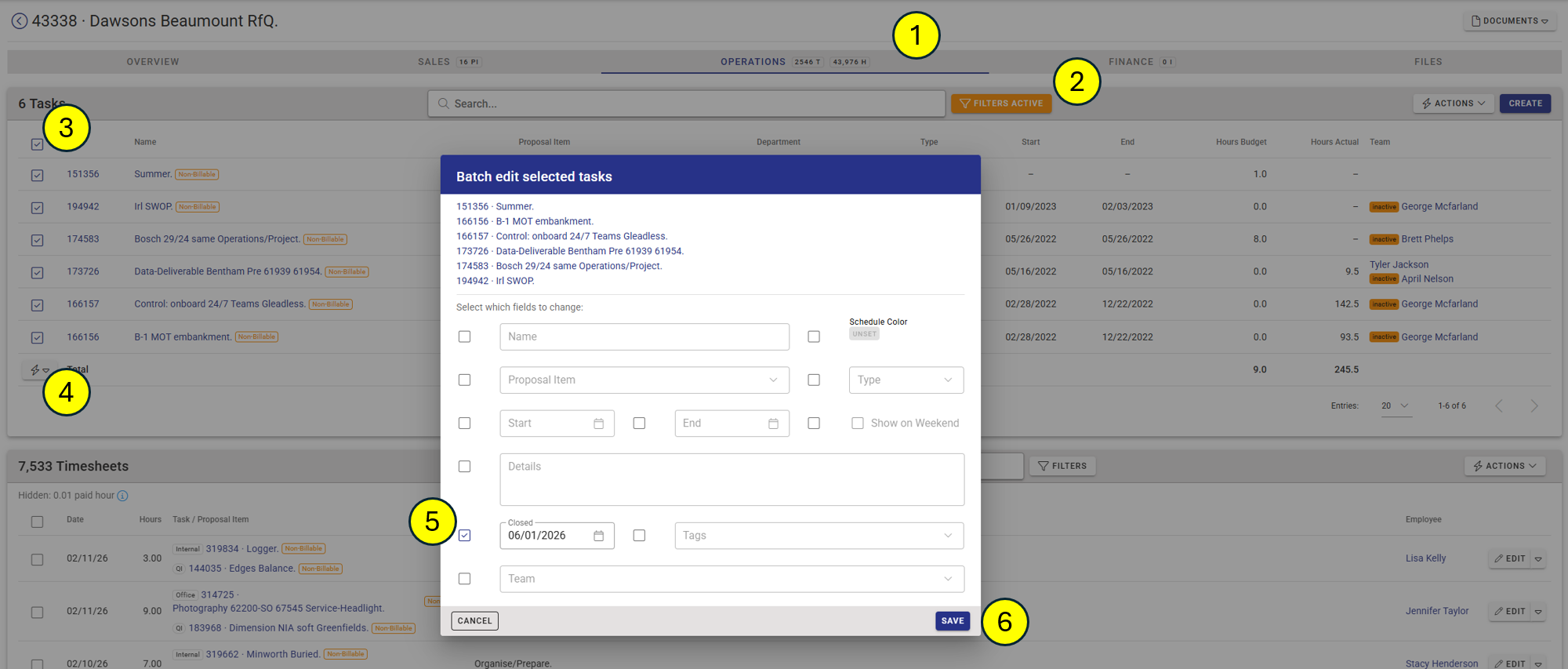
- Go to Projects → [project] → Operations tab.
- Use the Filters to narrow the list if needed. For example, filter by date range or task type to isolate the older tasks you want to close.
- Tick the checkboxes next to all the tasks you want to close.
- Click Edit in the selection toolbar that appears.
- In the batch edit dialog, tick the checkbox next to the Closed field and enter the appropriate date.
- Click Save. All selected tasks will be closed in one go.
What exactly does closing a task do?
- The task disappears from the diary task dropdown for any date on or after the closed date. Employees can no longer log time against it going forward.
- The task remains visible in the project's Operations tab and in all reports. Nothing is deleted.
- The task still appears in the diary dropdown for past dates before the closed date, so employees can still correct or add entries for dates when the task was active.
- On the Schedule view, closed tasks show a ban icon instead of a drag handle. They cannot be moved, and the quick-edit save button is disabled.
How do I choose the right closed date?
Set it to the last date work was actually carried out on that task. For example, if a fieldwork task ran through the end of last month, close it on the last day of that month. This ensures employees can still amend any diary entries from that period if needed, but the task will not clutter the list for current work.
If you want to close a task immediately and are confident no further diary entries are needed, setting the closed date to today works fine.
Can employees still see closed tasks in their diary?
Yes, if an employee opens their diary for a past date that falls before the task's closed date, the task will still appear in the dropdown for that date. Closing a task is not retroactive; it only prevents new entries from being added on or after the closed date.
What if I close a task by mistake?
Simply reopen it by editing the task and clearing the Closed field. The task will immediately become available again in the diary dropdown.
Note: if the task's proposal item also has a closed date set, clearing the task-level closed date alone may not be enough. The proposal item's closed date takes precedence if it is earlier. In that case, the proposal item's closed date would also need to be cleared or adjusted.