
Import leave allowance
Overview
Rather than setting each employee's annual leave allowance individually, Kompass lets you import allowances in bulk from a CSV file. This is particularly useful at the start of a new leave year, when onboarding a group of new starters, or when migrating historical allowance data from another system.
The import creates or updates Allowance records (the entitlement pool from which Kompass calculates each employee's remaining leave). After a successful import, Kompass automatically recalculates the taken and remaining totals for every affected user.
Before You Start
Who can import allowances?
You need the Import Allowances permission (leave.import_allowance ) on your account. If the Import Allowances option does not appear in the Actions menu on the Leave page, ask your Kompass administrator to add this permission to your group.
What is an allowance?
An allowance is a leave entitlement record. It tells Kompass how many days (or hours) a user is entitled to for a given period. A user may have multiple allowances, for example, one for each year, or separate records for annual leave. Each allowance has a start date and the system calculates its end date automatically as the day before the next allowance of the same category and type begins.
There are two allowance types:
| Type | Code | How it works |
|---|---|---|
| Lump | L |
The full entitlement is granted immediately on the start date. |
| Accrual | A |
The entitlement builds up proportionally over the year. Remaining leave shown in Kompass reflects how much has accrued to date (or to year-end, depending on your org's configuration). |
And two allowance categories:
| Category | Code |
|---|---|
| Annual Leave Allowance | A |
| Sick Leave Allowance | S (currently not in operation) |
Preparing Your CSV File
The import file must be a CSV. The columns below are supported. Column names are case-sensitive and must match exactly.
Required columns
Every row must include enough information to identify the user and define the allowance. You must provide exactly one of user_id or user_email to identify the user (not both). If you are updating an existing allowance record, you may use id instead of a user identifier.
| Column | Description | Example |
|---|---|---|
user_id |
The Kompass numeric ID of the employee. | 42 |
user_email |
The email address of the employee. Use this if you don't know the user ID. | [email protected] |
category |
Allowance category: A for Annual Leave. |
A |
type |
Allowance type: A for Accrual, L for Lump sum. |
L |
start |
The date from which this allowance applies. Format: YYYY-MM-DD . |
2025-01-01 |
Optional columns
| Column | Description | Example |
|---|---|---|
days |
The allowance in days. You can use days , hours , or both, Kompass adds them together. |
25 |
hours |
The allowance in hours. Useful when entitlement does not divide cleanly into whole days. | 4 |
hours_per_day |
The number of working hours in a day for this employee. If omitted, Kompass uses the org's default from the Leave configuration. | 8 |
notes |
Free-text notes about this allowance. | Standard 2025 entitlement |
created_by_id |
ID of the user to record as the creator. | 1 |
created_by_email |
Email of the user to record as the creator. | [email protected] |
How days and hours combine
Kompass stores allowances in hours internally. The total is calculated as:
hours_total = hours + (days × hours_per_day)
If you set days = 25 and hours_per_day = 8 , the total is 200 hours. If a user works 7.5-hour days, set hours_per_day = 7.5 to get the correct total (187.5 hours). If hours_per_day is not set in the CSV, the org's Leave Config value is used.
Example CSV
user_email,category,type,start,days,notes
[email protected],A,A,2025-06-04,25,Standard annual allowance 2025
[email protected],A,A,2025-02-13,28,Enhanced allowance - 5+ years service
[email protected],A,A,2023-01-12,25,Standard annual allowance 2025
[email protected],A,L,2025-01-01,10,Bonus on annual leave
In this example:
- All three employees receive their annual leave allowance when joined the company.
- Sara also receives a separate lump-sum leave allowance
- Because
hours_per_dayis omitted, Kompass uses the org default.
Running the Import
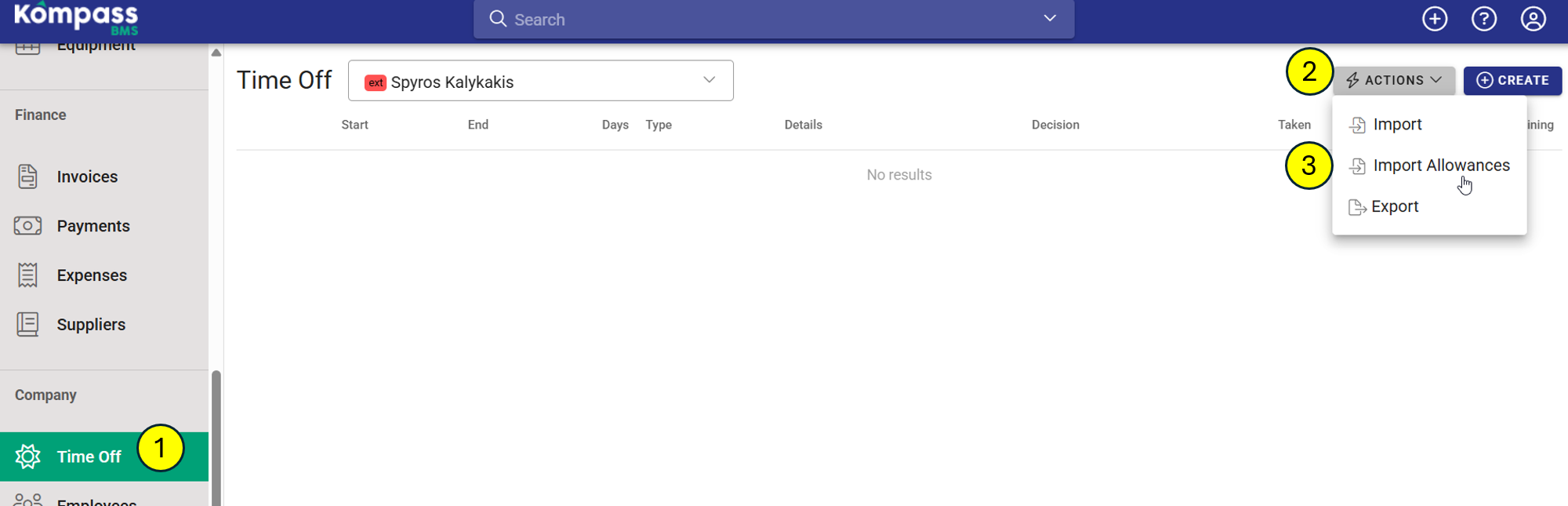
- Navigate to Leave in the main menu.
- Click the Actions button (top right of the Leave list).
- Select Import Allowances from the dropdown.
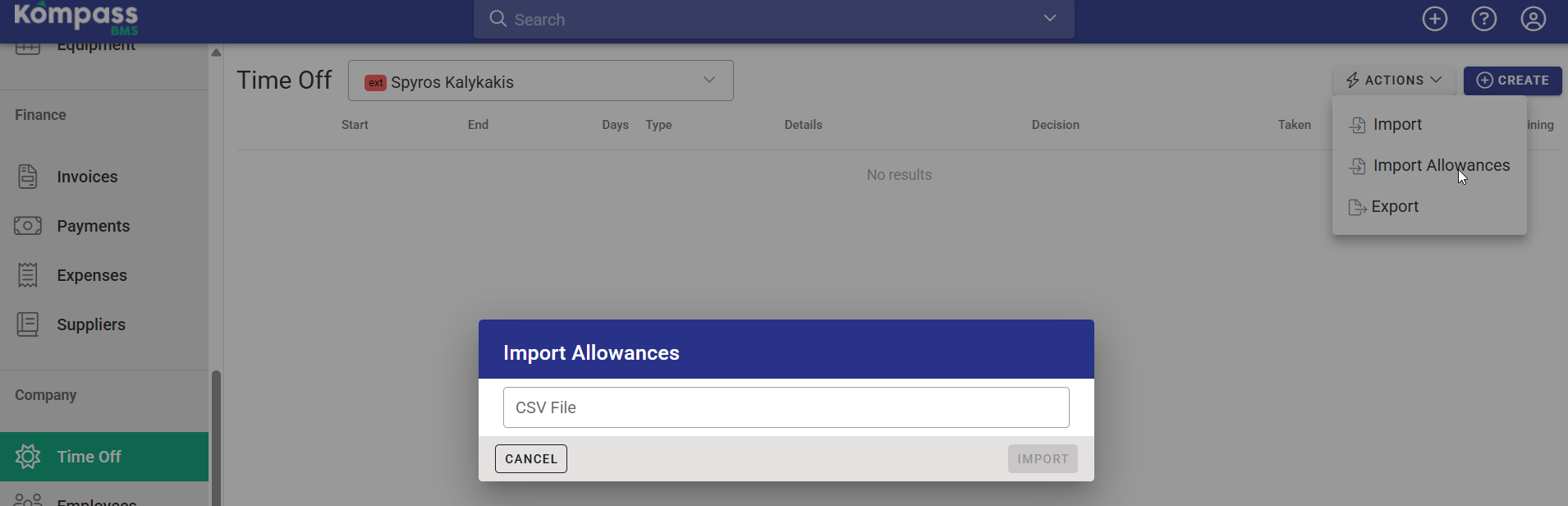
- In the import dialog, click Choose File and select your prepared CSV.
- Click Import to begin processing.
- Kompass processes each row and displays a results summary. Any rows with errors are listed with the reason (for example, an unrecognised email address or a missing required field). Rows without errors are saved immediately.
- After a successful import, Kompass recalculates the taken and remaining leave totals for every affected user automatically. The updated allowances and remaining balances will be visible immediately on each user's Leave page.
After the Import
Where to verify the results
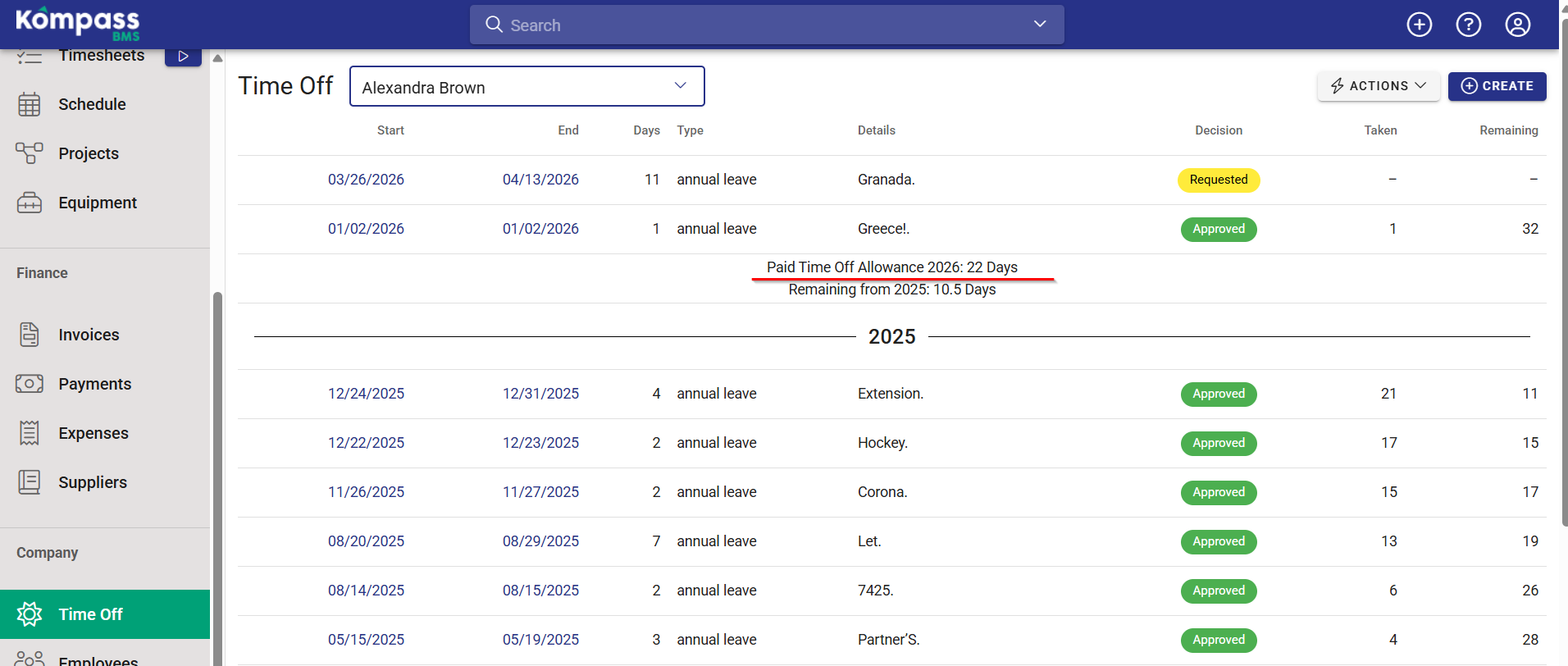
Go to Leave and use the employee selector at the top of the page to switch to any user whose allowance you imported. Their leave list will show the Annual Leave Allowance total for the relevant year alongside the taken and remaining figures.
If a user's remaining balance looks wrong
The remaining balance is recalculated automatically after each import, but if something looks unexpected, check the following:
- Multiple allowances for the same year: if the user has more than one annual leave allowance with overlapping periods, Kompass adds them together. This is intentional (some organisations grant a base allowance plus an additional service-based top-up), but double-check no duplicate rows were imported.
- Accrual vs lump sum: if
type = A(Accrual), the remaining figure shown on the leave page reflects how much has accrued up to today (or to year-end if your org is configured that way). The full allowance total will still appear, but the remaining will be less than the total until the year progresses. - Wrong
hours_per_day: if the remaining figure is off by a consistent factor, thehours_per_dayused during import may not match the user's actual working day. Re-import the row with the correcthours_per_dayvalue.
Permissions Reference
| Permission | What it allows |
|---|---|
leave.import_allowance |
Access to the Import Allowances action on the Leave page |
leave.import |
Access to the separate Import Leave (requests) action — different from allowances |
These are separate permissions. A user can have one without the other.